
How do I move students from one class to another?
The steps depend on how the classes were created.
Classes created using an external rostering service
Section titled “Classes created using an external rostering service”If your classes are on Google Classroom, ClassLink, or Clever, the roster changes need to happen there first.
If your school or district manages the rosters, wait for them to confirm that everything is ready.
If you manage them yourself (on Google Classroom), make the changes directly on the platform.
Then sync the changes in Rockalingua by following this guide.
Classes created manually
Section titled “Classes created manually”If you created the classes manually, you can move students inside Rockalingua.
Follow these steps:
-
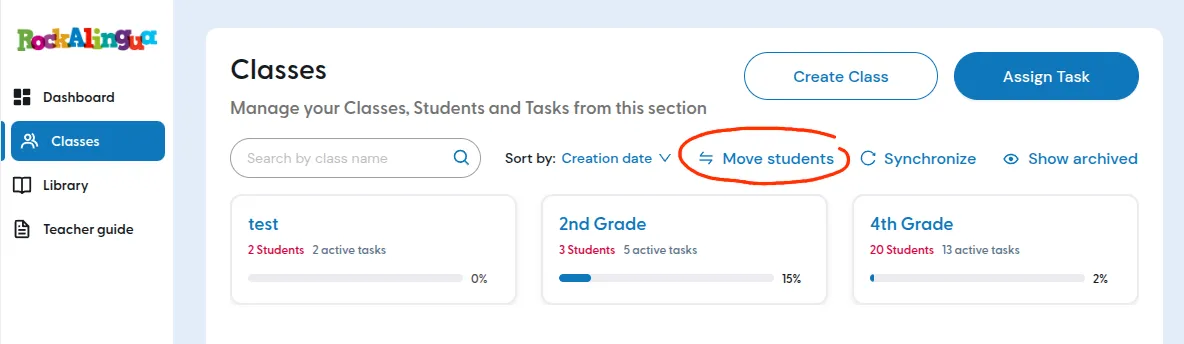
Go to ‘Classes’.
-
Click ‘Move Students’.
-
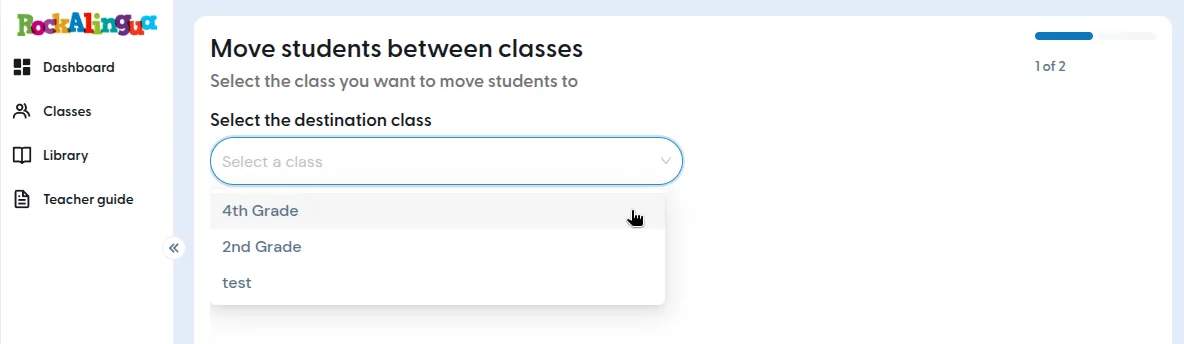
Select the class you want to move the students to.
-
Click ‘Continue’.
-
Select the students you want to move.
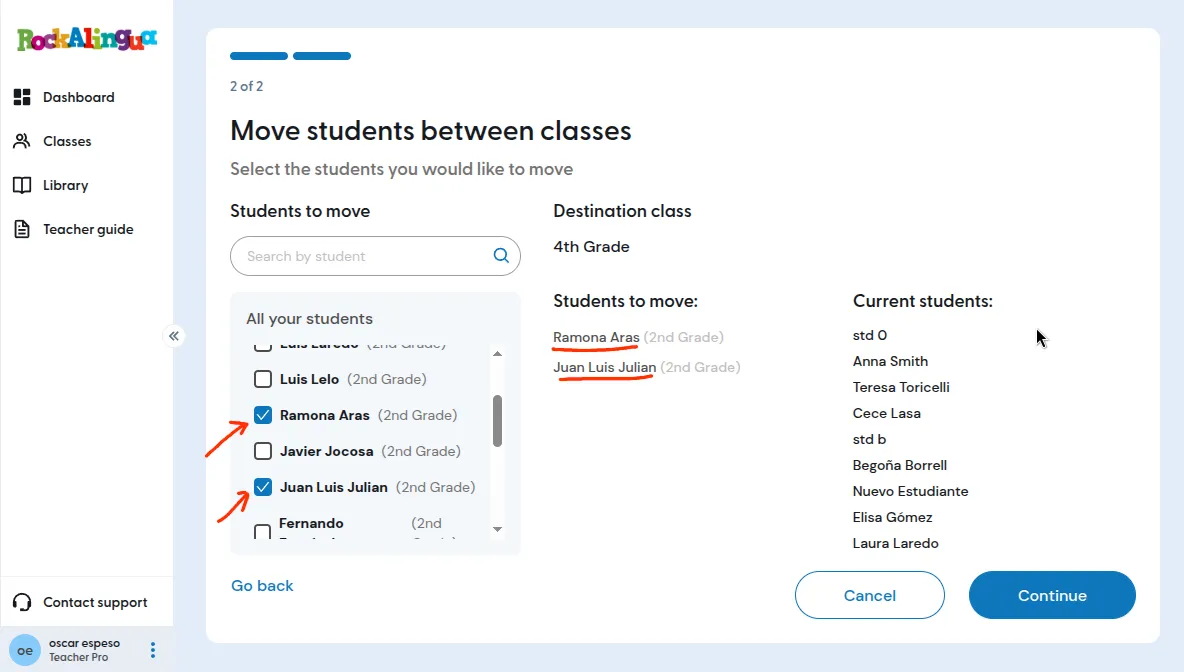
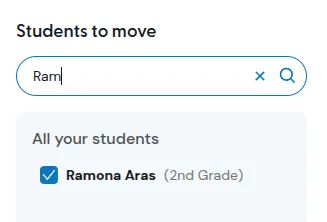
Tip: Use the search bar if you need help finding specific students.
-
Click ‘Continue’ to confirm.
-
Click “Go to class …’ to view the updated class.
The students will now appear in the destination class.