
How do I unarchive a class?
Important: This article covers classes you created in Rockalingua yourself. Classes that come from Google Classroom, ClassLink, or Clever are archived and unarchived automatically during the “Synchronize” process, not by hand. See My classes were updated on Google, ClassLink, or Clever. How do I sync them in Rockalingua? for how syncing works.
Archiving a class hides it from your main list, but it does not delete anything. The class, its students, and all their progress are still there, and you can bring the class back whenever you need it.
Find your archived classes
Section titled “Find your archived classes”Go to “Classes”.
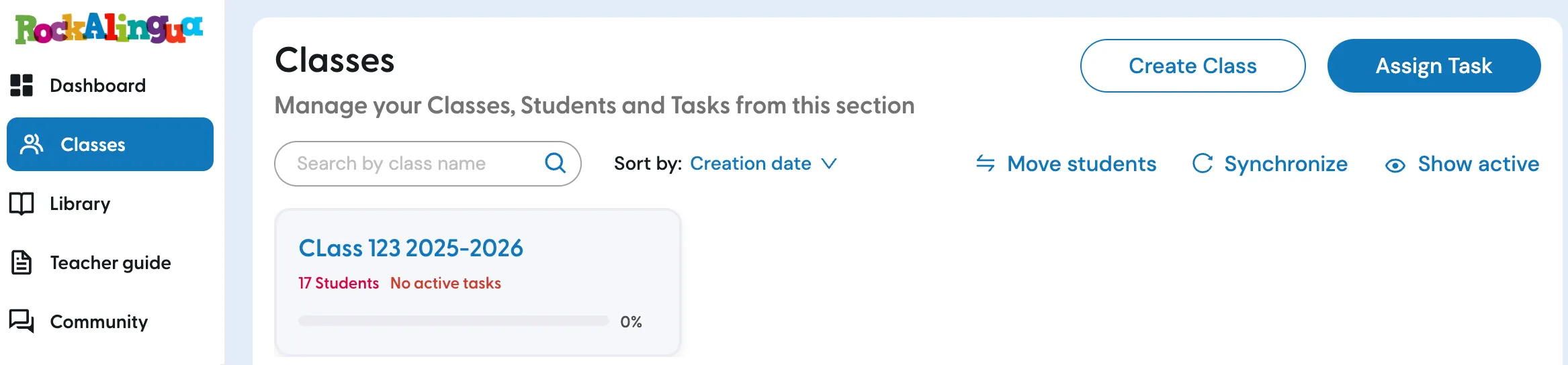
Click “Show archived”.

Your archived classes now appear in place of your active ones. The link changes to “Show active”, which takes you back to your normal list.
Bring the class back
Section titled “Bring the class back”Click the class you want to unarchive.
Click “Unarchive class”.

The class returns to your active list right away, with its students, its content, and its task history exactly as you left them.
Tip: While a class is archived, “Content Management” and “Tasks Management” are disabled. If you want to change what a class can see or assign it a new task, unarchive it first.
Before you unarchive an old class
Section titled “Before you unarchive an old class”Important: Your students see every active class they belong to. If you bring back a class from a previous year while your students are already enrolled in this year’s class, they will be asked to choose a class every time they log in.
If you only need to look something up, that prompt is a good reason to archive the old class again once you are done.
To hide a class again, read How do I archive a class?