
How do I track the class progress on a task?
Use the class task progress overview to compare each student’s progress and correctness for every activity in a task.
To reach this view:
-
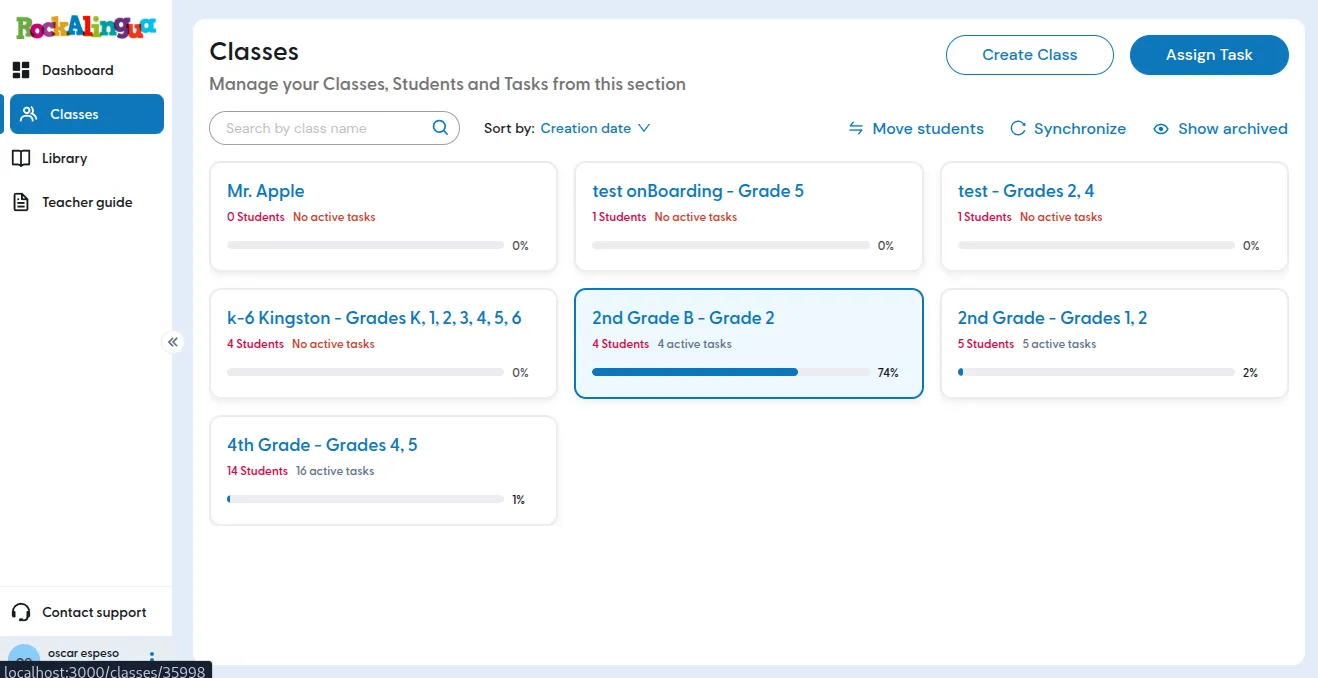
Go to “Classes”
-
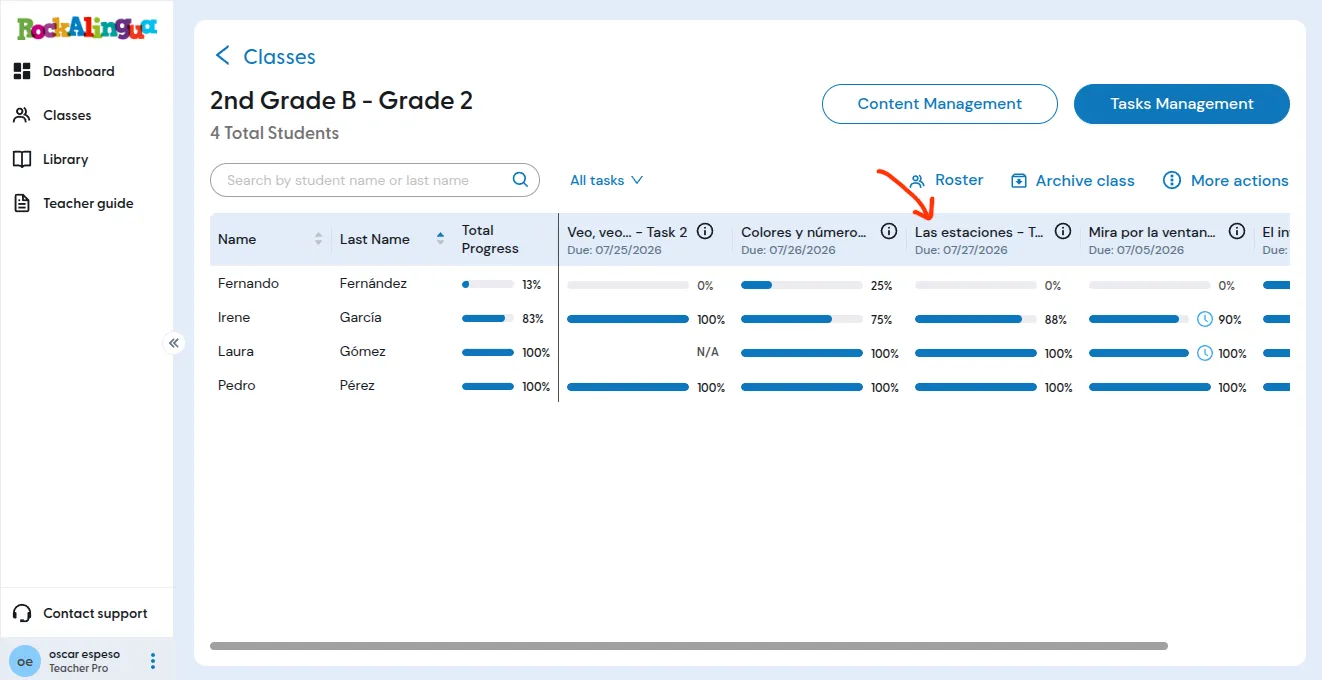
Click the class you want to review.
-
Click the task name of the task you want to review in the table header.
-
The class task progress overview will open
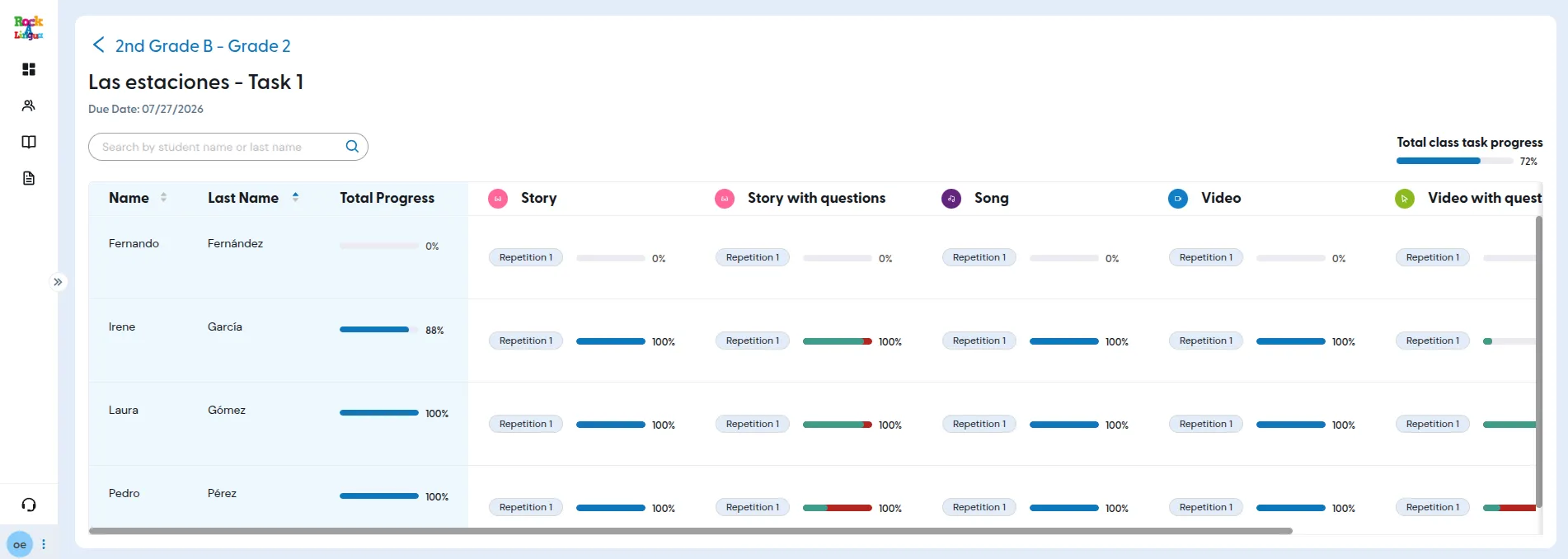
The ‘Class task overview’ screen shows each student’s progress and correctness for every activity in the task.
If an activity is set to repeat, the view shows progress and correctness separately for each configured repetition. Correctness is shown only for activities with right and wrong answers.
Correctness appears only for activities with right and wrong answers. For these activities, the progress bar is divided into two sections. The green section shows the percentage of answered questions that were correct. The red section shows the percentage that were incorrect.
From here you can reach a more detailed progress view for each student: Click a student’s name to open the “Student task results**”** view. It shows that student’s progress and correctness for each activity and repetition in the task.
For a general explanation of how Rockalingua records and displays progress, read How can I track my students’ progress?