
Integration with Google Classroom
Connecting Rockalingua with Google Classroom makes logging in easier for you and your students. It also lets you see your students’ progress on Rockalingua tasks right inside Google Classroom.
Rostering. Bringing Your Google Classroom Classes to Rockalingua
Section titled “Rostering. Bringing Your Google Classroom Classes to Rockalingua”You can easily bring your classes and students into Rockalingua from Google Classroom.
First login using Google Classroom:
- Go to https://rockalingua.com/login.
- Click on “I’m a Teacher”
- Click on “Login with Google Classroom”
To Synchronize your classes:
-
After logging in, go to your “Classes” page
-
Click the “Synchronize” button:

-
Select “With Google Classroom” and click “Continue”
-
Follow the instructions on the screen
To guarantee a smooth link between Rockalingua and Google Classroom, it is essential to select every checkbox to authorize all required permissions.
This will either import your classes for the first time or update any changes you’ve made in Google Classroom since the last time you synchronized.
Easy Login with Google Classroom for students
Section titled “Easy Login with Google Classroom for students”- Go to https://rockalingua.com/login.
- Click on “I’m a student”
- Click on “Login with Google Classroom”
Keeping track of the progress on Rockalingua tasks from Google Classroom
Section titled “Keeping track of the progress on Rockalingua tasks from Google Classroom”When you assign a Rockalingua task, make sure to check the ‘Post to Google Classroom’ option.
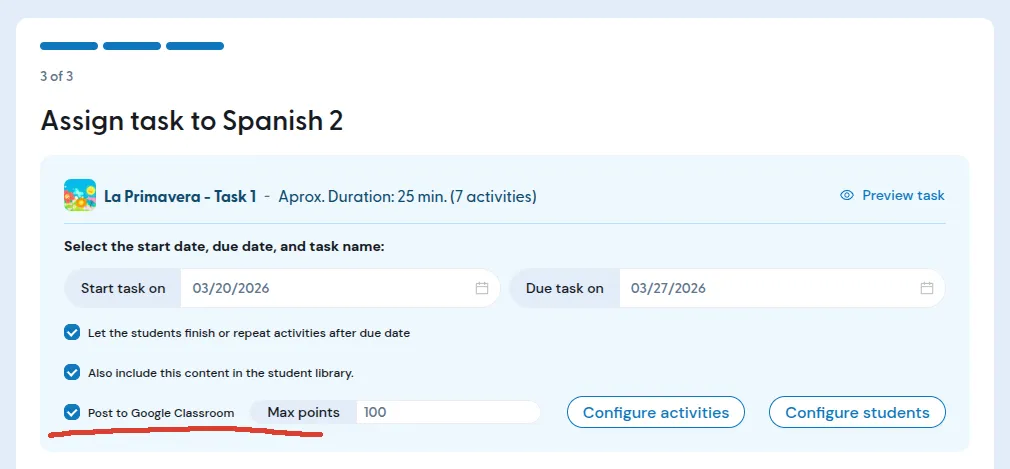
Your students will see the assignment on their Google Classroom dashboard with a direct link to the Rockalingua task.
Additionally, as they complete the task at Rockaligua, their progress will automatically update at Google Classroom too.
TroubleShooting: “Administrative Approval required”
Section titled “TroubleShooting: “Administrative Approval required””If your students are seeing a page requesting ‘administrative approval’ when they try to access their assignments in Google Classroom, do not worry! This usually means that your school’s Google Workspace settings are too tight and are blocking the Rockalingua application.
To fix this, you will need to share the following instructions with your school’s IT administrator so they can allow Rockalingua access for your students.
Instructions for Google Workspace Administrators
Section titled “Instructions for Google Workspace Administrators”-
Go to the Google Admin console: https://admin.google.com/
-
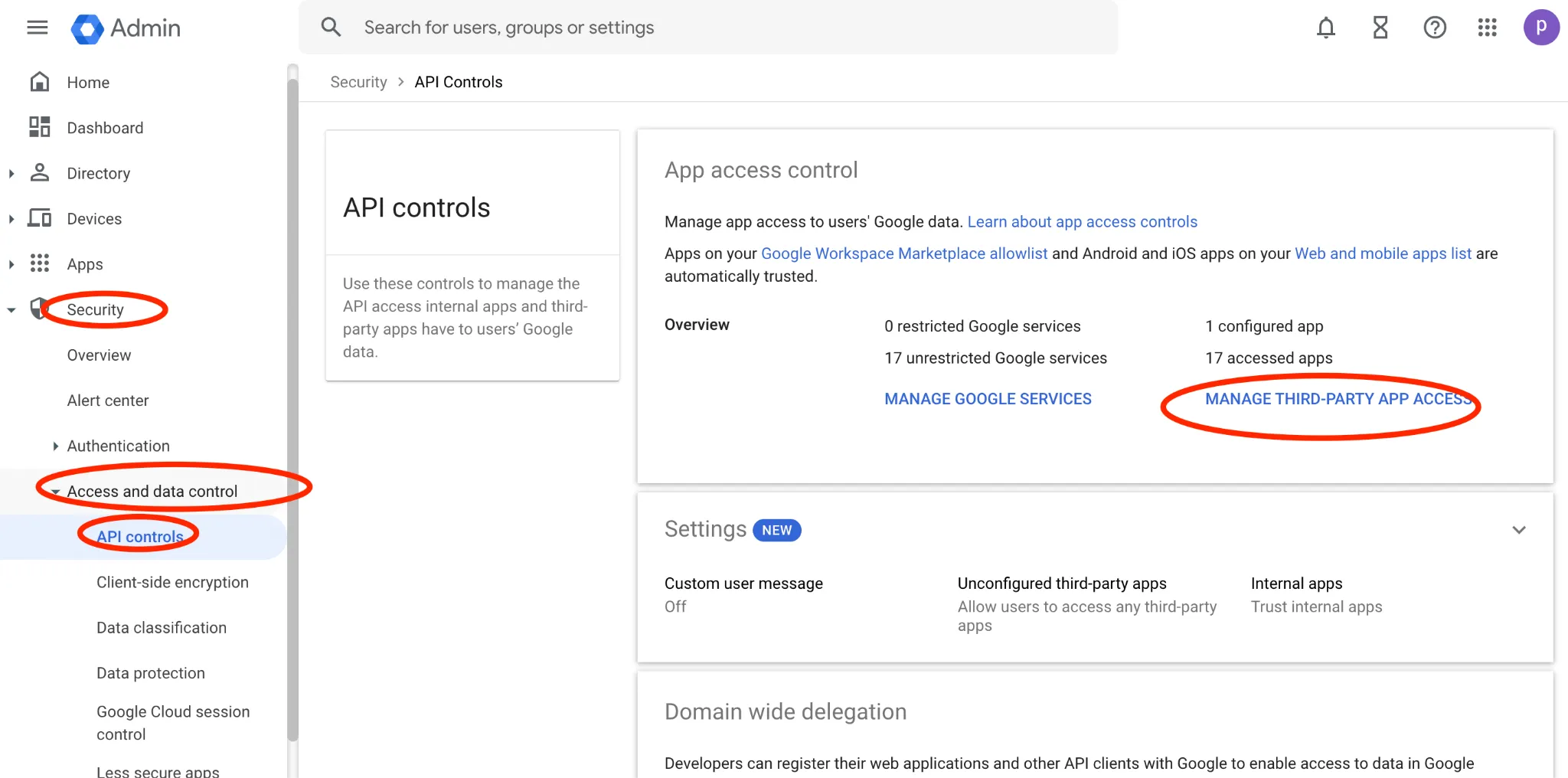
Navigate to Security -> Access and data control -> API controls.
-
On the following screen, click on Manage Third-Party App Access.
-
In the search panel, search for “rockalingua”.
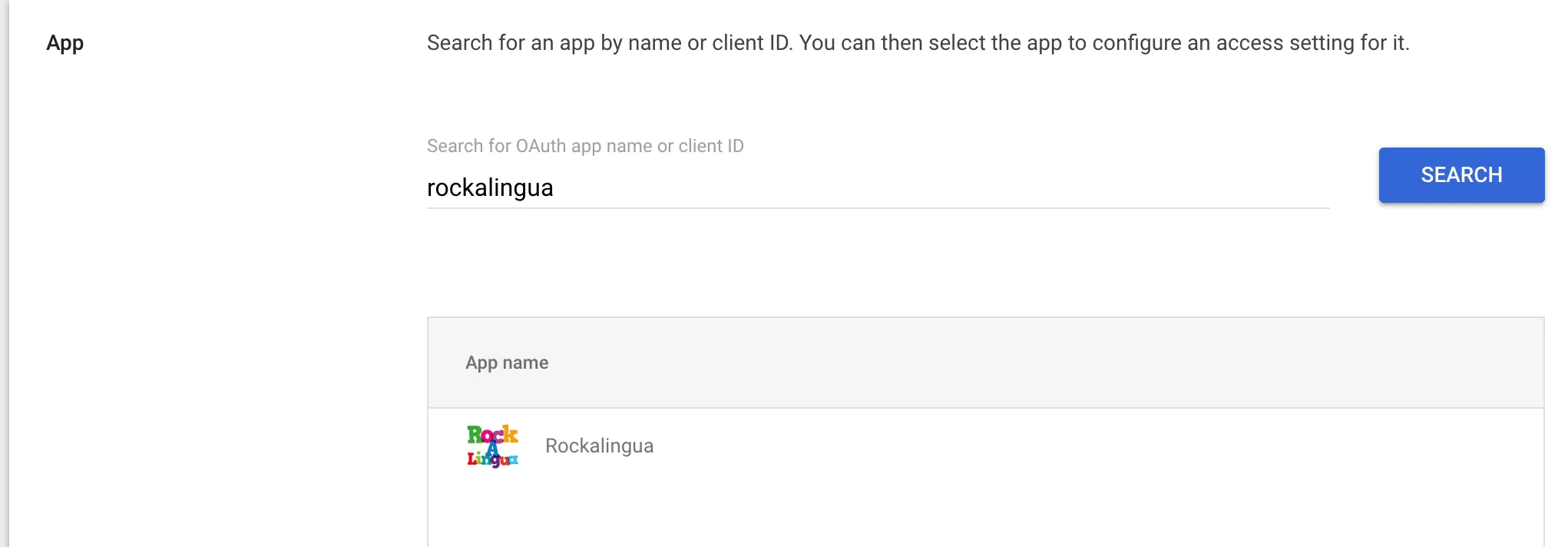
If the search is unsuccessful, use the Rockalingua Client ID:
420226320333-dbtobr1e55jd4gqhjha6v43ikv523eif.apps.googleusercontent.com
-
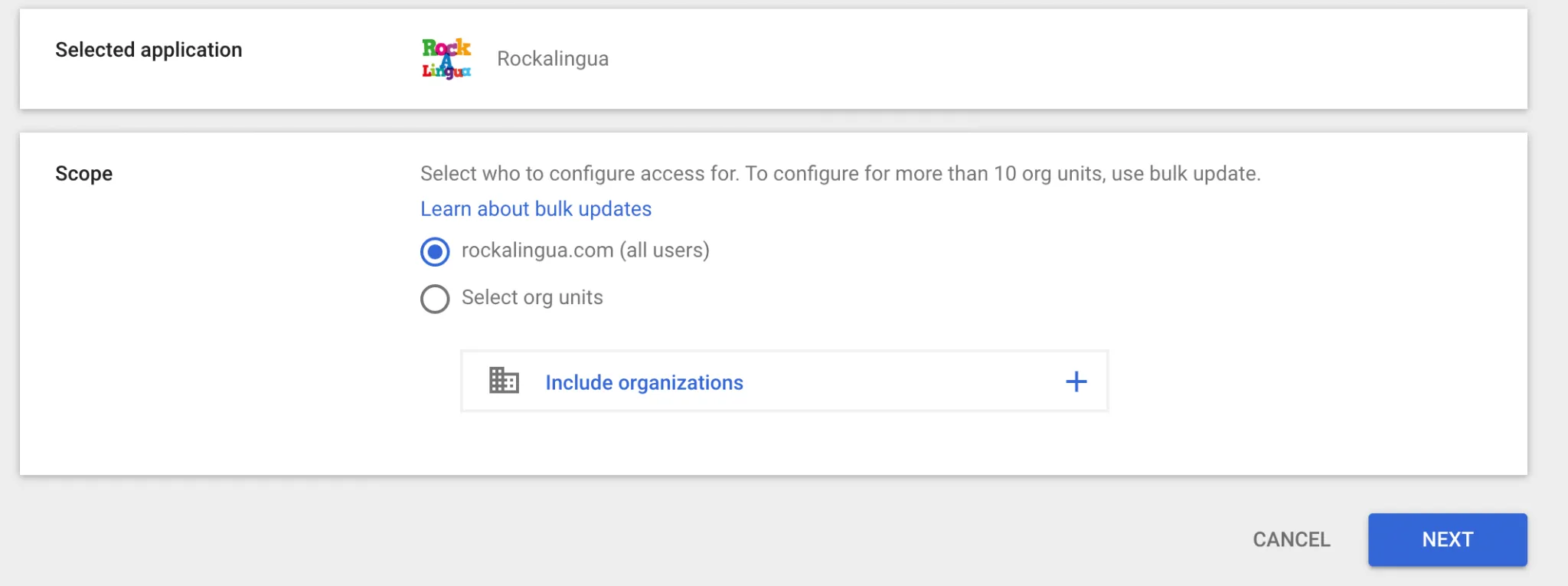
Select the Rockalingua application.
-
Choose the users who will have access to the app
-
Select the app as Trusted.
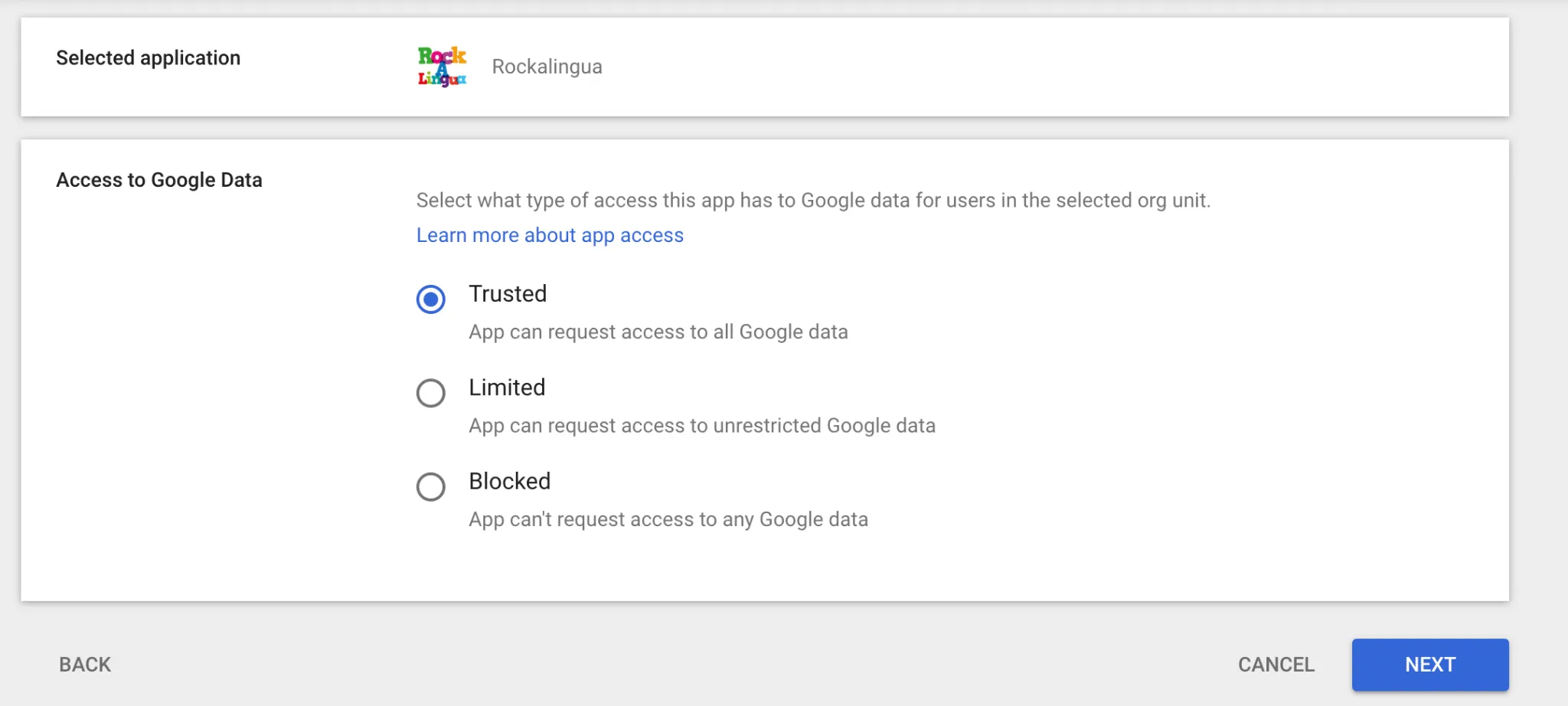
-
Save the changes to grant the permissions.