
How do I assign a task to one of my classes?
Tasks let you assign work to your students and follow their progress.
A task is made of several activities, such as a song, video, game, etc. Students need to complete those activities before the due date you choose.
Rockalingua includes premade tasks for each theme. You can choose one and assign it quickly. You can also add or remove activities before you assign it. You can even select which students in the class will have the activity assigned to them.
To assgin a task:
-
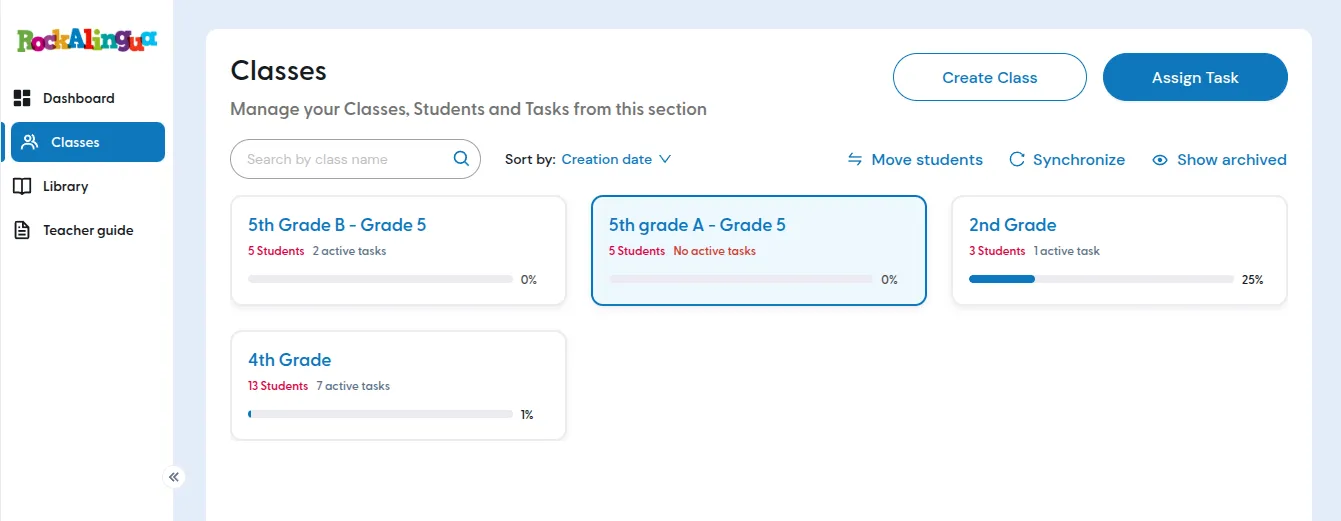
Go to “Classes”.
-
Click the class you want to assign a task to.
-
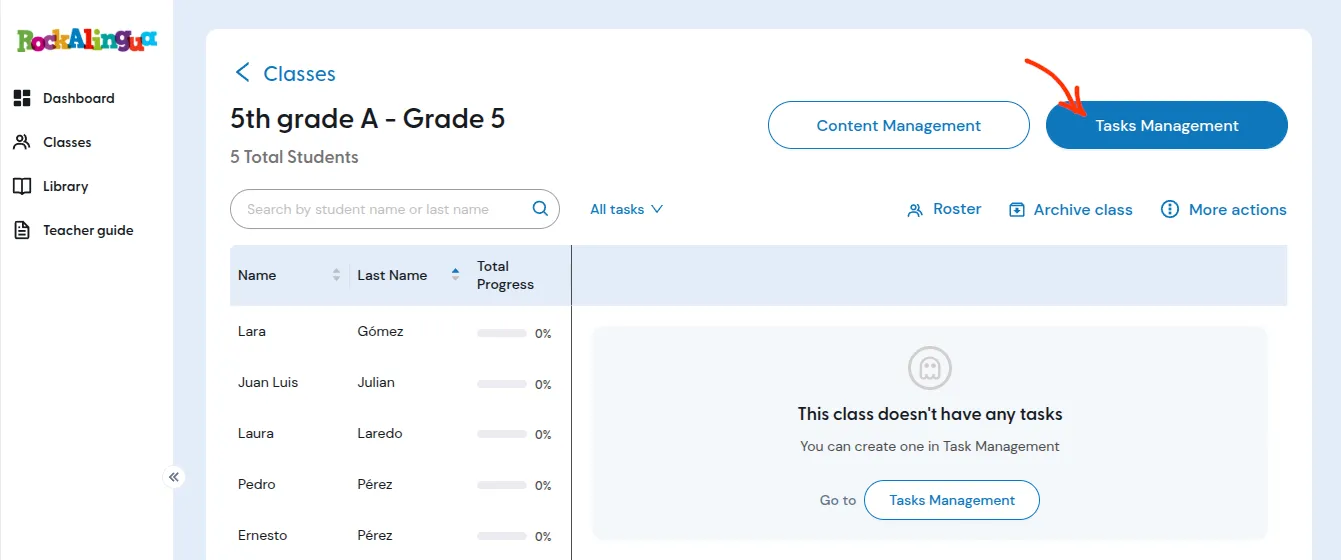
Click ‘Tasks Management’.
-
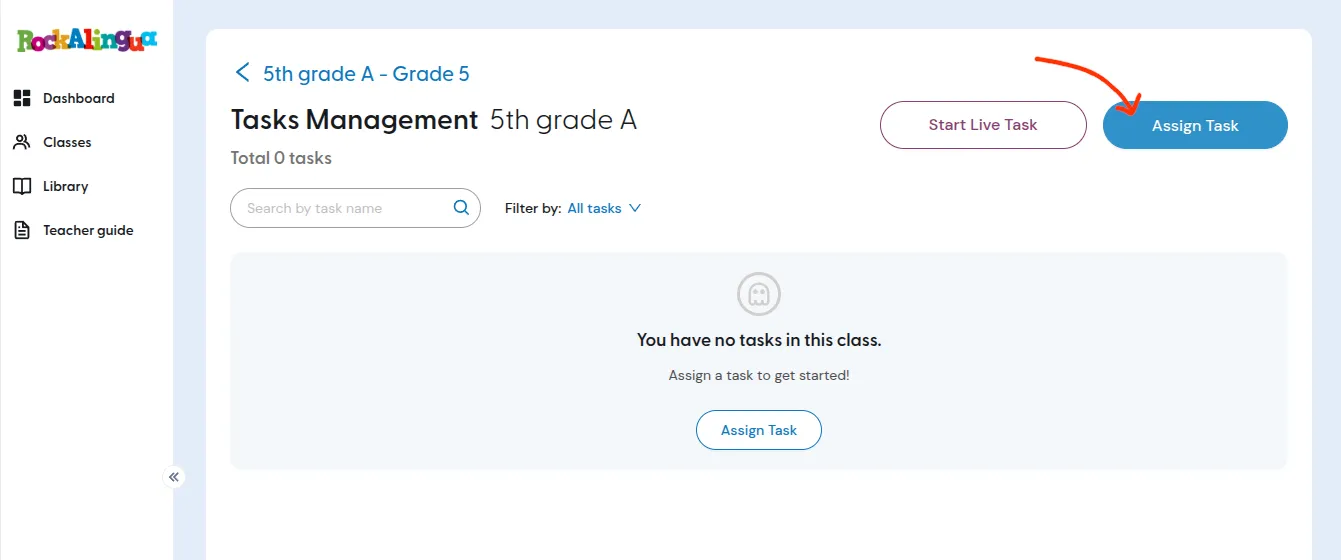
Click ‘Assign Task’.
-
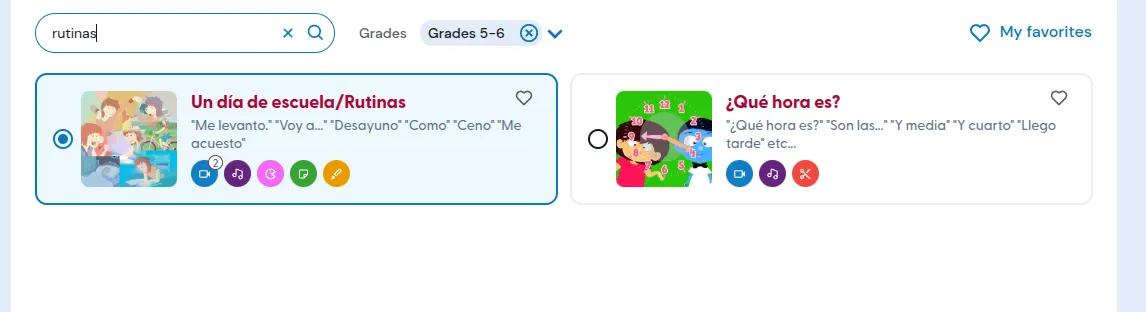
Select the theme you want the task to be about.
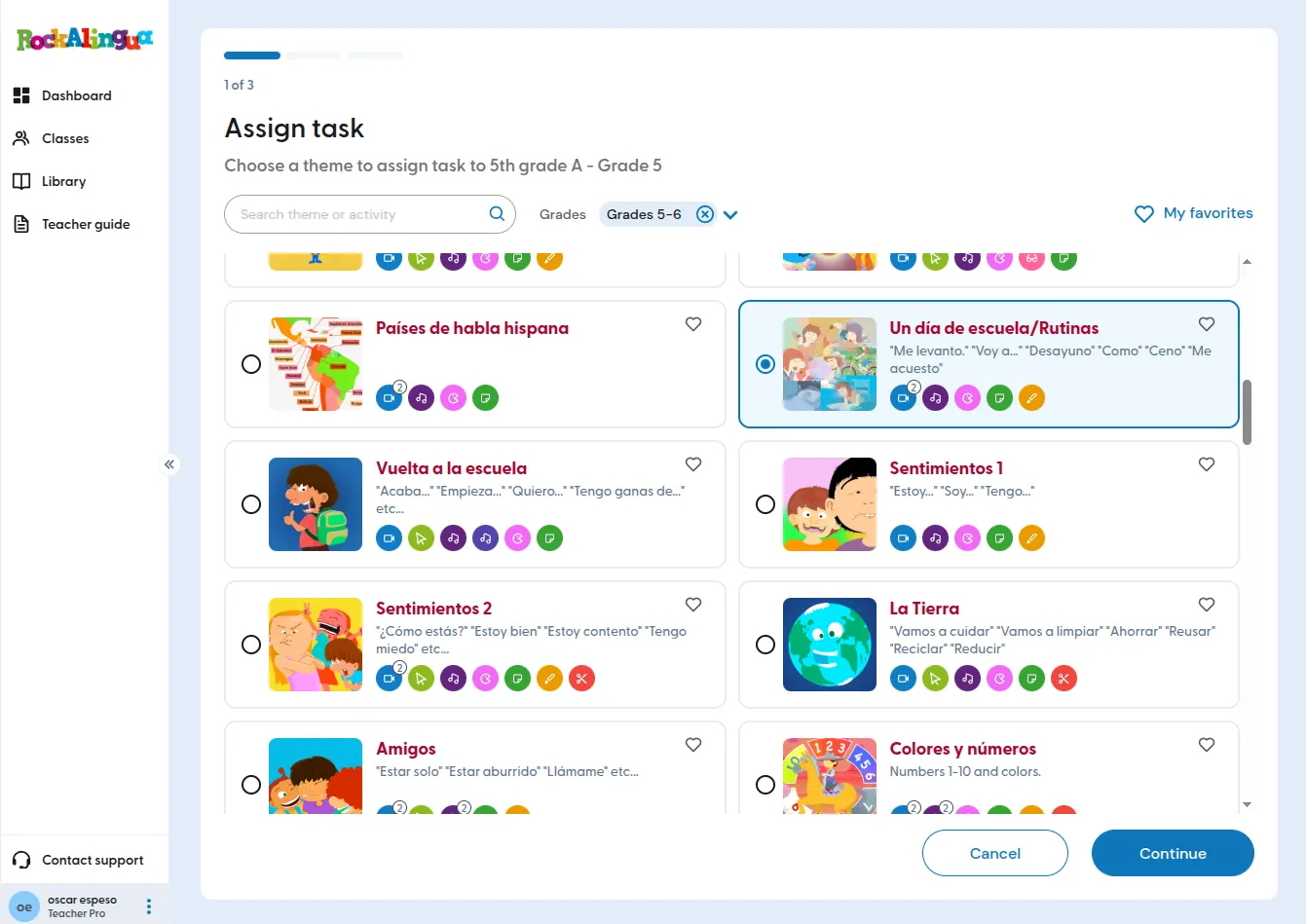
Tip: You can use the search box or the “My favorites” filter to narrow the theme list
-
Click “Continue” and select one of the premade tasks for that theme.
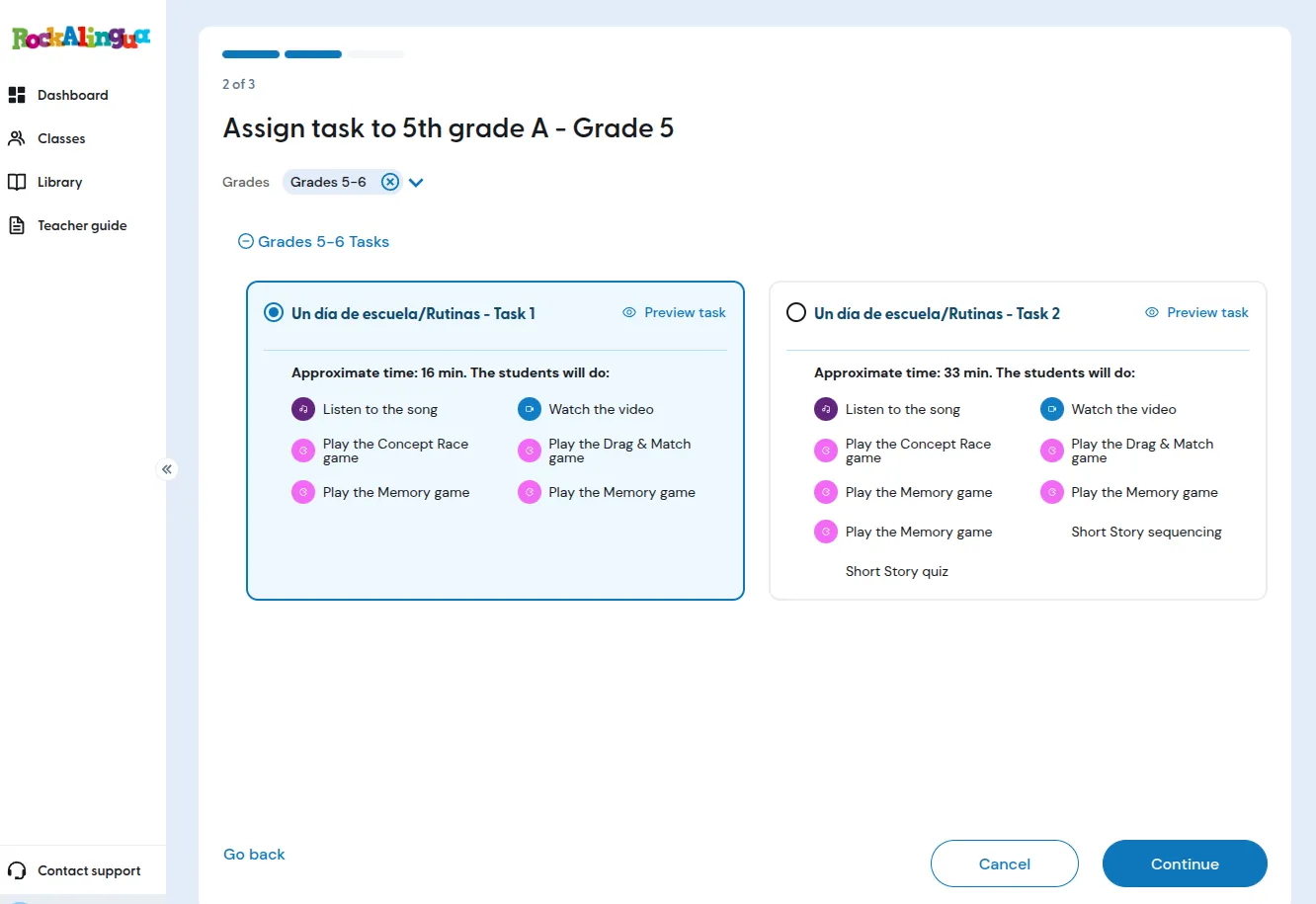
Tip: Notice the ‘Grades’ filter at the top. It is selected automatically based on the class, but you can change it. Grade levels are a guide. They may not match every class exactly because schools often begin teaching Spanish at different grade levels.
-
Click ‘Preview task’ if you want to see what is included before assigning it.
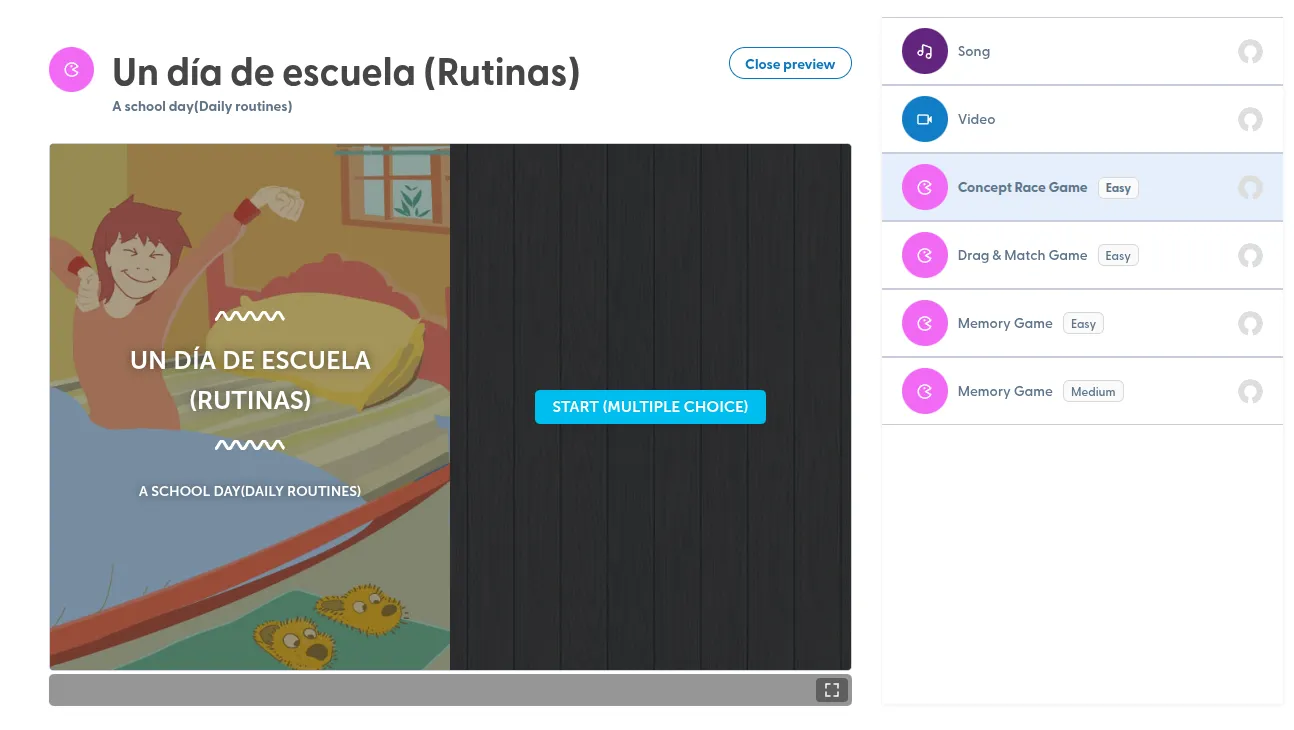
This will show you the task as the students would see it.
-
Click “Continue”.
-
Set the start date and due date for the task.
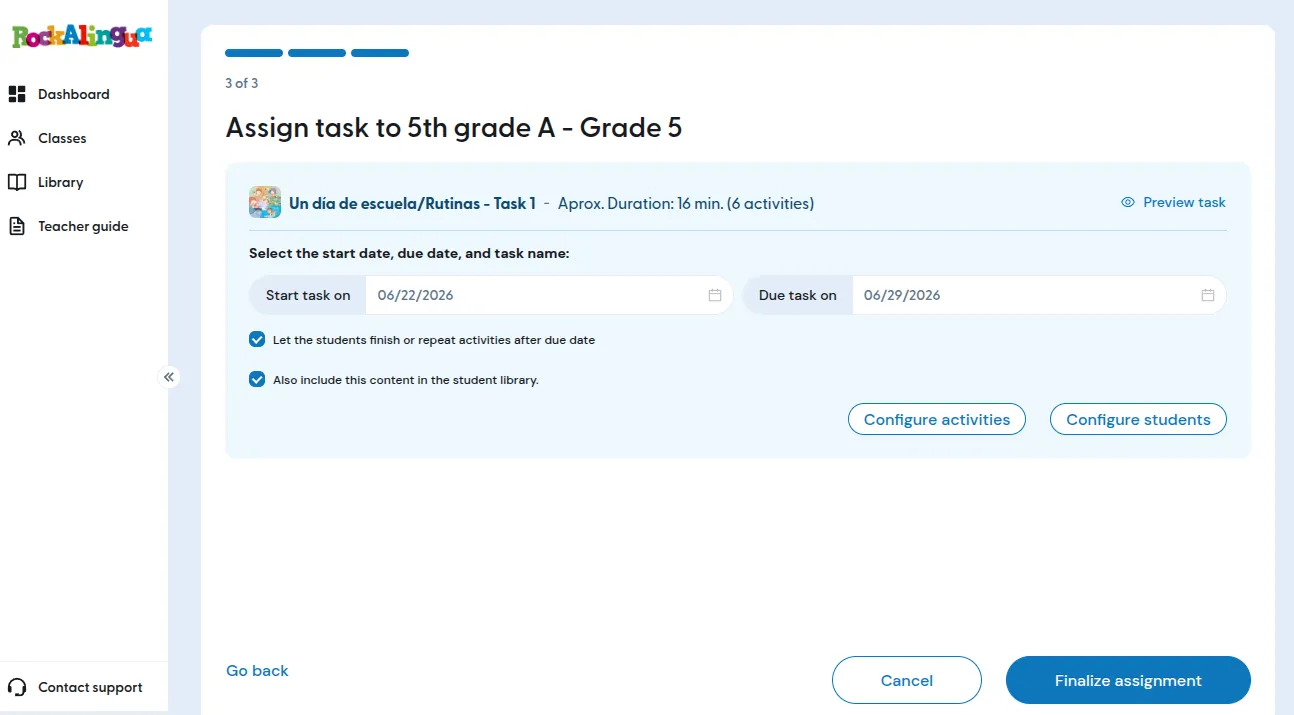
By default, the task starts right away and is due one week later. You can change both dates if needed.
Tip: Select ‘Let the students finish or repeat activities after due date’ if you want students to keep working after the due date.
This can be helpful if you want students to finish late work or improve their score. You will still be able to see what they did before and after the due date.
Tip: Click ‘Edit Activities’ if you want to add or remove activities before assigning the task.
Tip: Click ‘Select Students’ if you only want to assign the task only to some students in the class. By default, all students in the class receive the task.
-
Click ‘Finalize the assignment’ to save the task and assign it to the class or to the students you selected.
Your students will now see the task according to the start date you chose.