
Integration with Clever
Connecting Rockalingua with Clever makes logging in and managing your student rosters easier for you and your students.
Installing the Rockalingua App in Clever
Section titled “Installing the Rockalingua App in Clever”Since Rockalingua does not support rostering at the district level, your district’s administrators won’t be able to install the app for you.
Don’t worry, you can easily install it yourself right from the Clever Library. The process is quick and simple, and it’s the key to unlocking the Single Sing-On and Rostering features
Here is how to set it up:
-
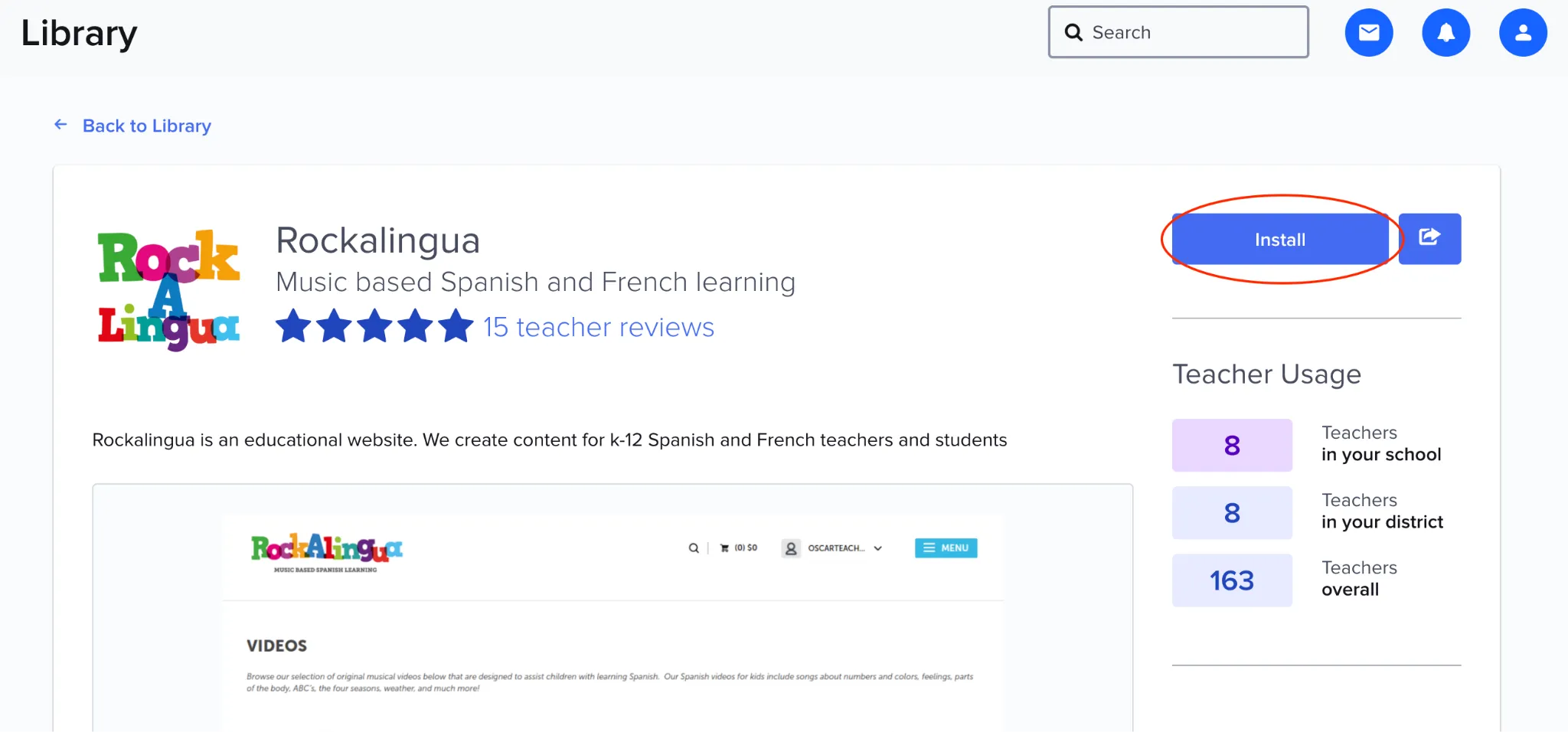
Go to the Rockalingua App in the Clever Library: https://clever.com/library/app/rockalingua
-
Click the “Install” button
-
Allow Clever to share your students’ data with Rockalingua so that their accounts can be created
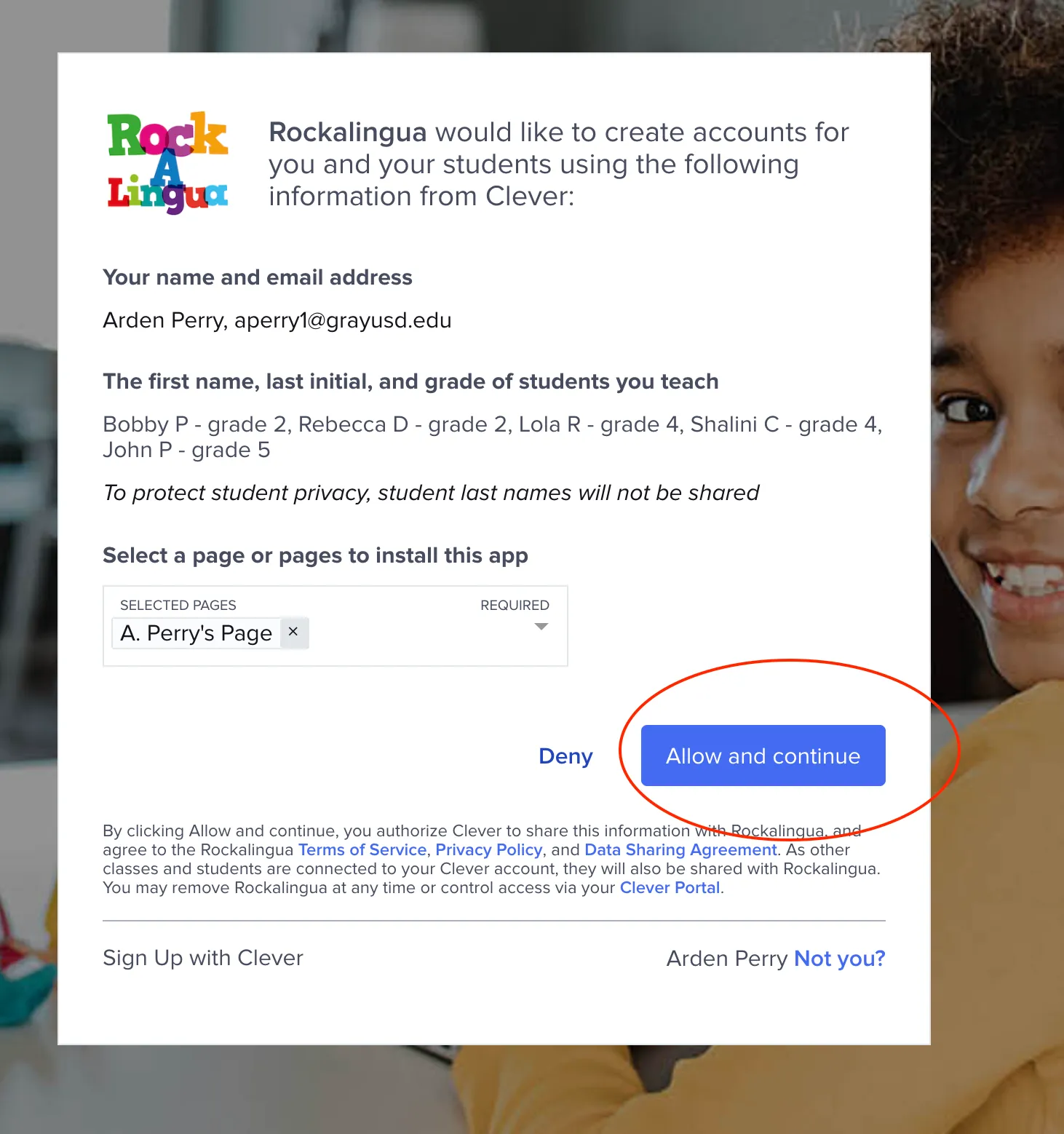
That’s it! You can now bring your classes to Rockalingua.
For more information follow this link to Clever’s documentation:
For Teachers: Clever Library - adding applications
Rostering. Bringing Your Clever Classes to Rockalingua.
Section titled “Rostering. Bringing Your Clever Classes to Rockalingua.”Log in using Clever:
- Go to https://rockalingua.com/login.
- Click on “I’m a Teacher”
- Click on “Login with Clever”
Importing your classes from Clever and keep them updated is very easy:
-
After logging in to Rockalingua, go to your “Classes” page
-
Click the “Synchronize” button:

-
Select “With Clever” and click “Continue”
-
Follow the instructions on the screen
This action will either perform the initial import of your classes or synchronize any subsequent modifications made on Clever since the last synchronization.
Easy Login with Clever for students
Section titled “Easy Login with Clever for students”This always works:
- Go to https://rockalingua.com/login.
- Click on “I’m a student”
- Click on “Login with Clever”
This works if you installed the Rockalingua App in Clever
- Open Clever.
- Go to your teacher’s page.
- Find and click the Rockalingua icon.