
Integration with Clever, ClassLink or Google Classroom FAQs
We make it easy to connect and manage your Rockalingua classes using platforms like Clever, ClassLink, and Google Classroom. This helps streamline adding students and makes it simpler for them to log in.
For more detailed instructions on your platform follow the corresponding link below:
Integration with ClassLink Integration with Google Classroom Integration with Clever
I have new students in my class. How do I get them added?
Section titled “I have new students in my class. How do I get them added?”If you’ve confirmed that these students were already added to your rostering platform, all you need to do is quickly re-sync your class.
Go to your “Classes” page and click “Synchronize”:

Then follow the instructions on the screen (or see our step by step guide here), it only takes a moment
After syncing my class, some students are still missing. What can I do?
Section titled “After syncing my class, some students are still missing. What can I do?”If you saw an error message during the sync, please contact us here.
If there was no error, probably your students weren’t added to the connected platform yet.
Reach out to your school’s or district’s IT team and ask them to help add these students to the system. Once they confirm it’s done, you just need to re-sync your classes.
How do I remove a student from my class?
Section titled “How do I remove a student from my class?”For synced classes, student lists are managed through your connected platform and you can’t do it manually from Rockalingua. The student must be deleted from the class on your source platform (Clever, Classroom, or ClassLink).
After the student is removed from the source platform, re-sync your class to apply the change in Rockalingua.
Are student tasks and progress synced too?
Section titled “Are student tasks and progress synced too?”Yes, but only with Google Classroom.
The key step is to make sure you check “Post to Google Classroom” when assigning tasks. This is what allows you to track their progress in Google Classroom.
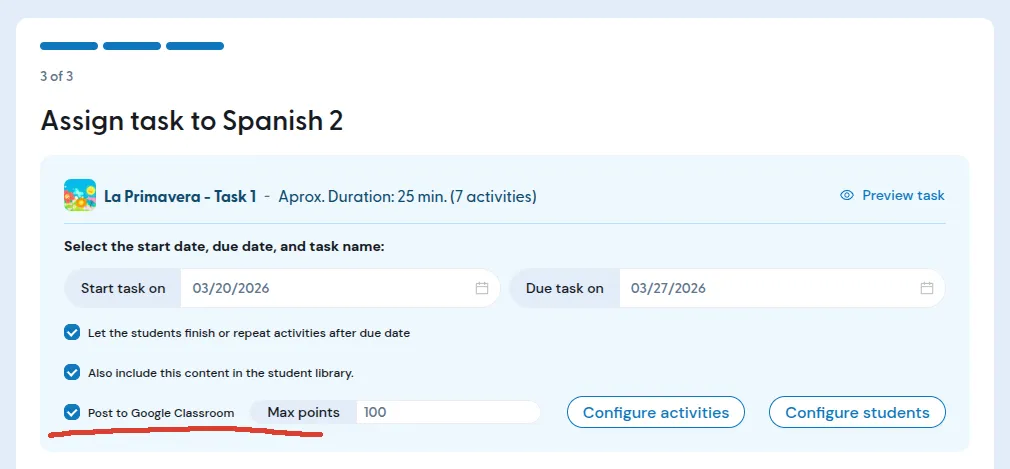
Once you do this, the progress synchronization happens automatically for those tasks.
Do my classes sync automatically?
Section titled “Do my classes sync automatically?”Class data doesn’t update instantly (in real time).
ClassLink is the only one that automatically syncs your class data once overnight.
For Clever and Google Classroom, or if you need an immediate update, you can sync anytime manually: Go to the “Classes” page and click “Synchronize”.
Can I use different platforms for different classes?
Section titled “Can I use different platforms for different classes?”Absolutely! You can connect multiple platforms, such as Clever, ClassLink, or Google Classroom, and use them for different classes (but remember, only one platform per class).
Will student progress transfer when I change my class integration (e.g., from Clever to ClassLink)?
Section titled “Will student progress transfer when I change my class integration (e.g., from Clever to ClassLink)?”No. Changing your class integration will not transfer existing student data. A new set of class data will be created on the new platform and that means that your students won’t have the same user on Rockalingua.
To preserve the previous student progress, you will need to keep the old classes.
We suggest disconnecting the classes from the old platform in the “Settings”->”Integrations” screen.
This action will:
Disconnect the classes from the platform.
Archive these classes, allowing you to consult old progress, but hiding them from the main classes list, avoiding confusion with the classes on the new platform.
Allow students to access their old progress, if you assign a password to their old user accounts.
When importing from Google Classroom, I see classes that are not mine. What should I do?
Section titled “When importing from Google Classroom, I see classes that are not mine. What should I do?”This is usually due to a misconfiguration of your Google user permissions. Reach your school’s IT team and ask them to help with this.
I imported a class with Google Classroom, but the student can’t log in with Clever.
Section titled “I imported a class with Google Classroom, but the student can’t log in with Clever.”Classes integrated with Google Classroom only can use the Google single sign on.
The same reasoning is applicable to any of the supported platforms.
If you want your students to log in with Clever you need to have your class in clever and sync to that class from Rockalingua choosing Clever as the platform.
Be aware, you can have the “same” class on both platforms and sync both from Rockalingua. This is not a good idea. They are not the same classes even though their names may be the same. The students in their rosters are not the same user even when they have the same first and last name. The tasks you assign on one platform class do not transfer to the other, etc.. you get the idea.
We strongly discourage this practice, although we cannot prevent it.