
How can I see a student's progress across all tasks?
-
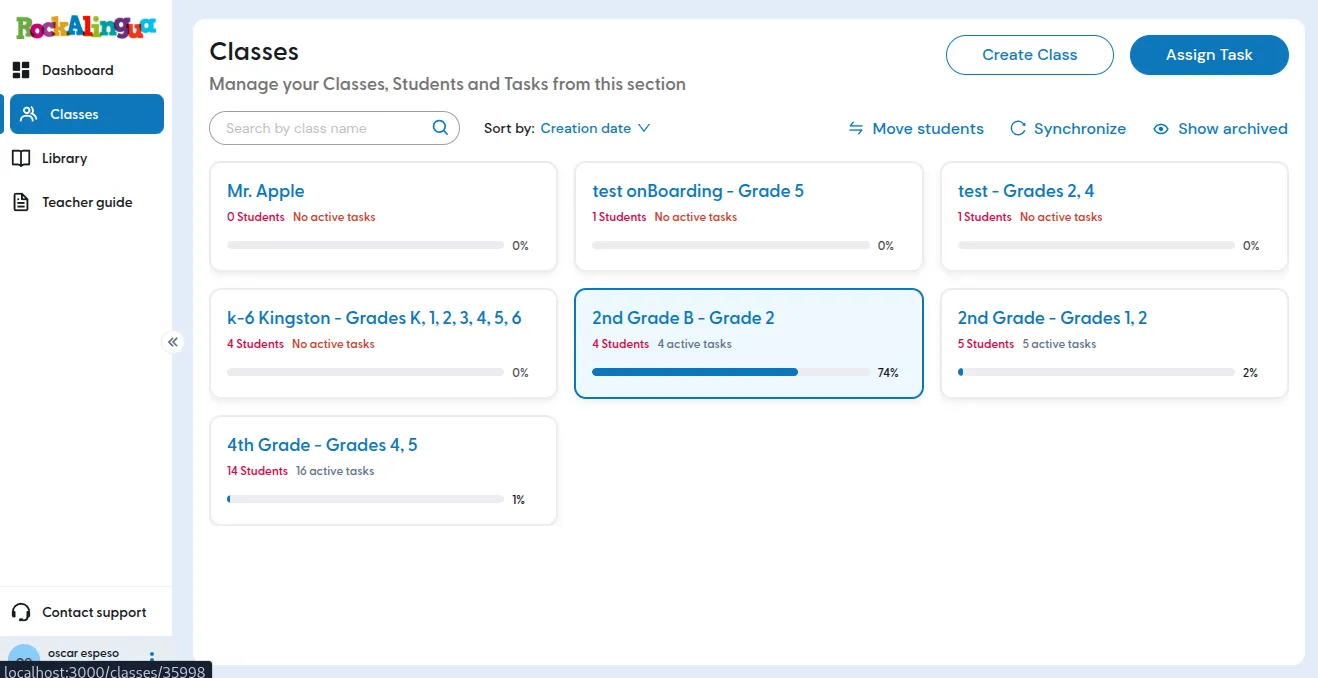
Go to ‘Classes’.
-
Click the class where the student is enrolled in.
-
Click the name of the student you want to review.
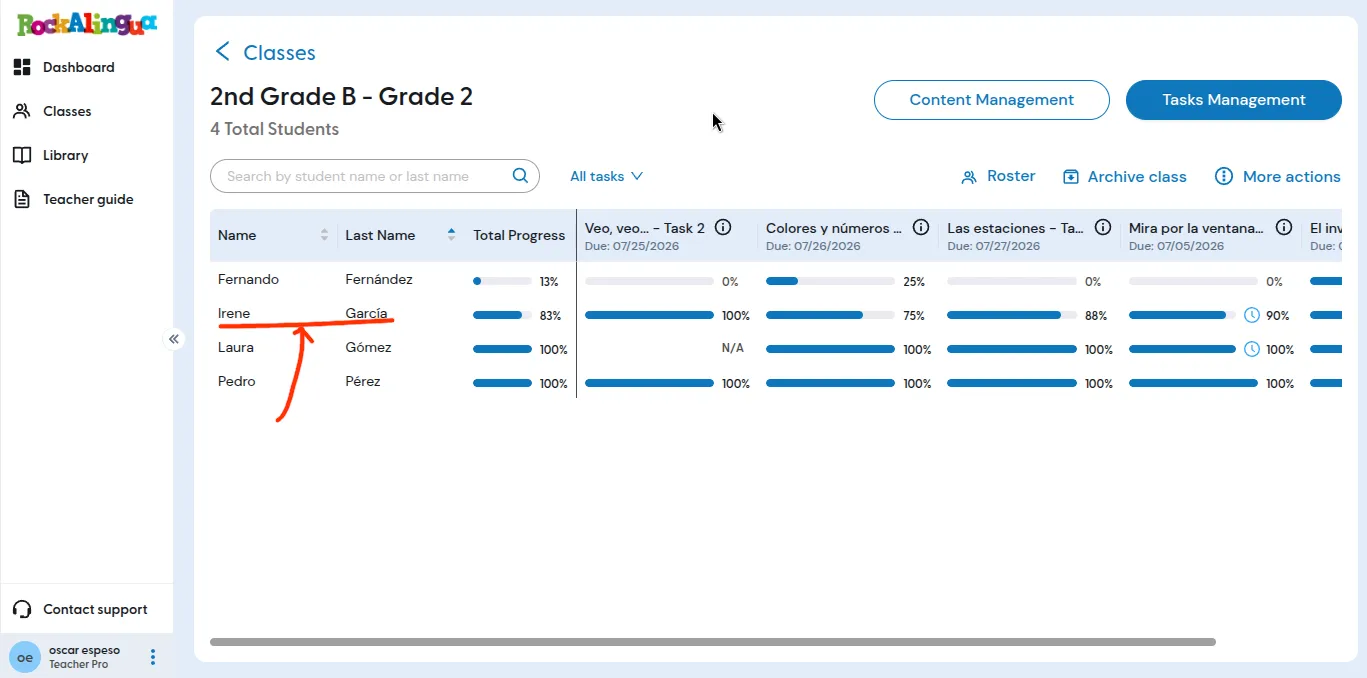
The “Student progress overview” shows the student’s progress on each assigned task.
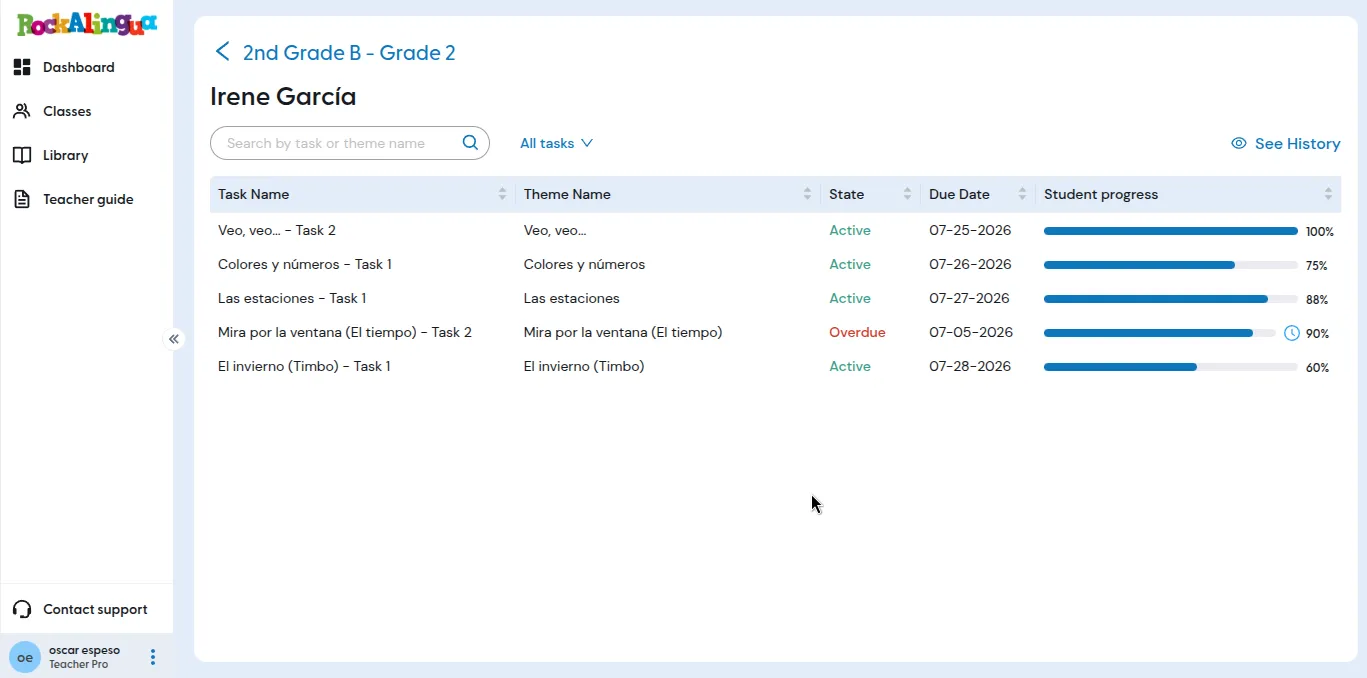
If the student completed a task after its due date, a watch icon appears next to the task’s progress bar.
Tip: If you cannot find a task, check the task filter. For example, when the filter is set to “Active tasks”, overdue tasks are not shown.
Click a task name to open the “Student task results” view.
Click “See history” to view the classes the student has been enrolled in.
For more details about a student’s progress on a task, read How can I see a student’s detailed progress on a task?.