
How do I add content to several classes at once?
When you want to give the same theme to more than one class, start from the “Library”. You choose the theme once, then pick all the classes that should get it.
Find the theme
Section titled “Find the theme”Go to “Library”.
Use the grade buttons at the top (“All Grades”, “Grades K-2”, “Grades 3-4”, “Grades 5-6”) or the “Search theme or activity” box to find what you need.
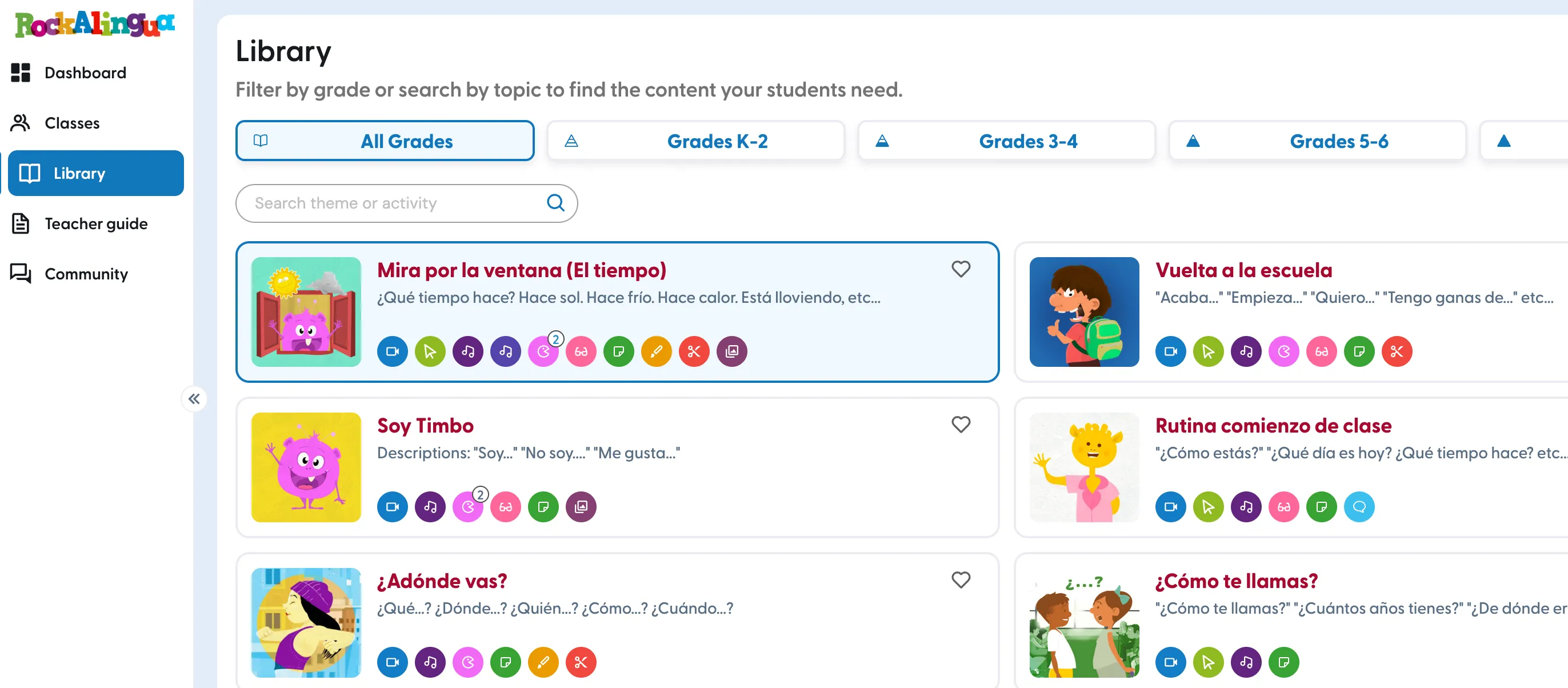
Click the theme you want to add.
Add it to your classes
Section titled “Add it to your classes”Click “Add Content”.
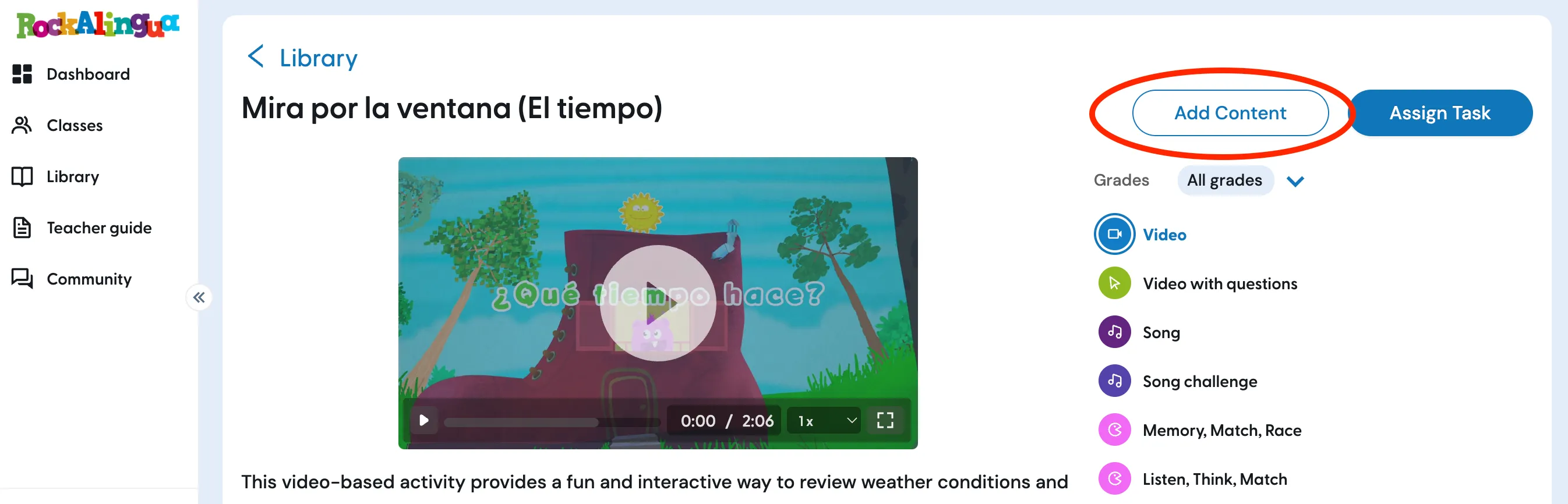
Tip: On this page you will also see “Assign Task”. That is a different action. “Add Content” puts the theme in your students’ library so they can explore it freely, while “Assign Task” gives them work to complete and tracks their progress.
Check every class you want to add the theme to. You can select as many as you need.
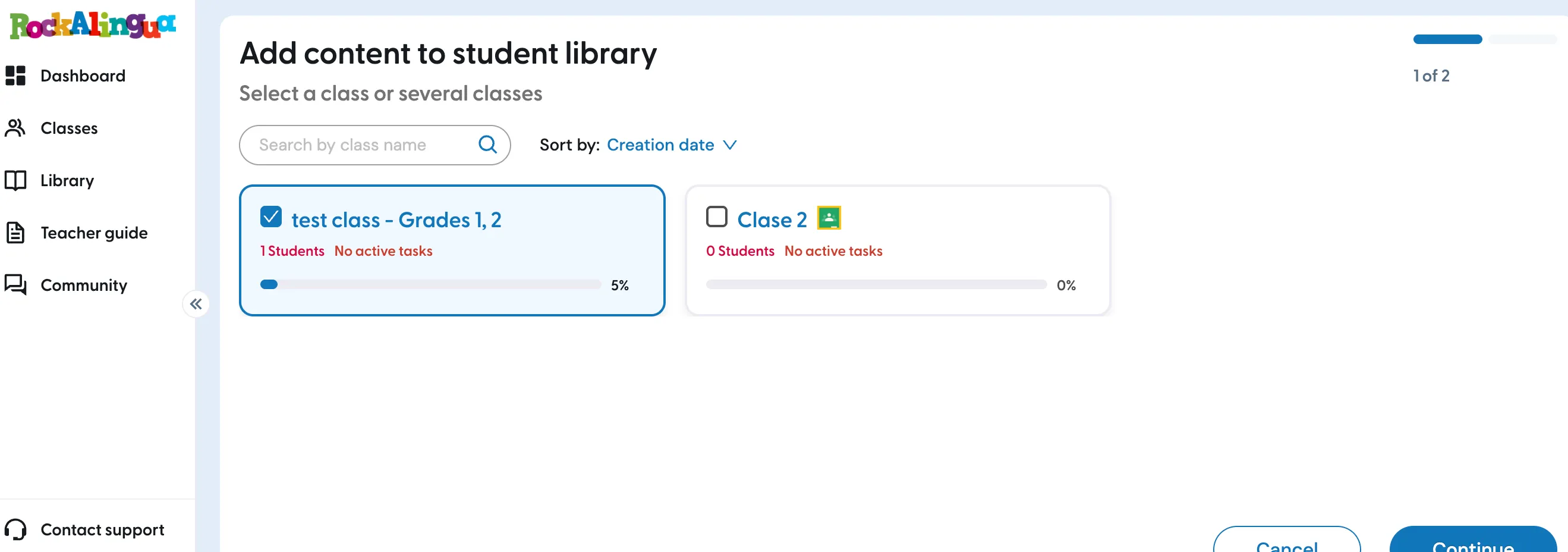
Click “Continue”.
Choose the activities
Section titled “Choose the activities”Check the activities you want to add. The heading tells you which class you are configuring, so you can give each class a different selection.
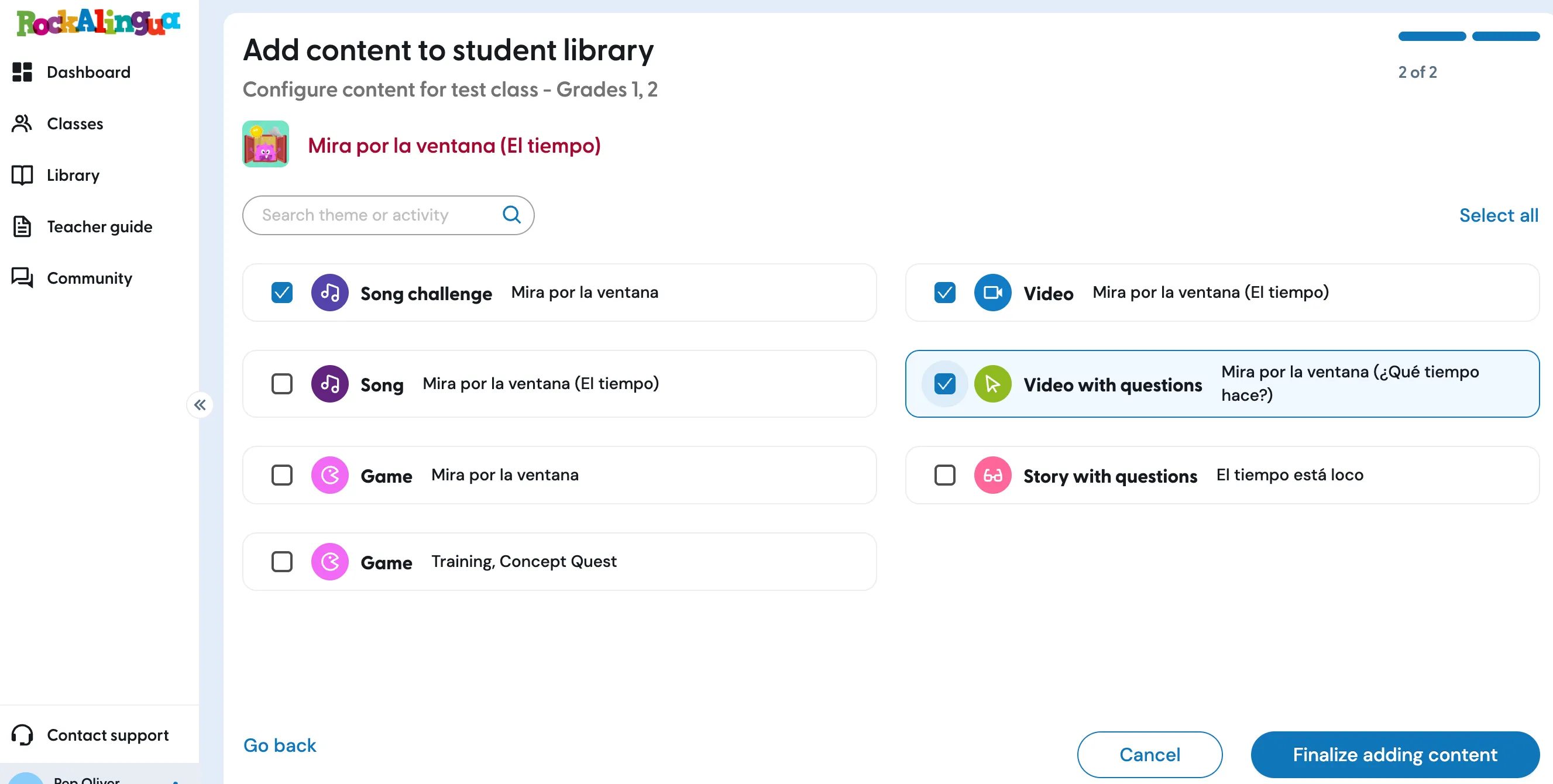
Tip: Click “Select all” if you want the whole theme, then uncheck anything you would rather leave out.
Click “Go back” if you need to change the classes you selected.
Click “Finalize adding content”.
The theme is now in the library of every class you selected, and your students will see the activities you chose.
Tip: You do not have to give every class the same activities. A class that is further along can get the full theme, while another class starts with just the video and the song.
Changed your mind?
Section titled “Changed your mind?”You can adjust any class later without repeating this process. Open the class, click “Content Management”, and use “Edit activities” on the theme. Read How do I add or edit content for one class?