
My classes were updated on Google, ClassLink, or Clever. How do I sync them in Rockalingua?
To sync after changes to classes managed through Google Classroom, ClassLink, or Clever:
-
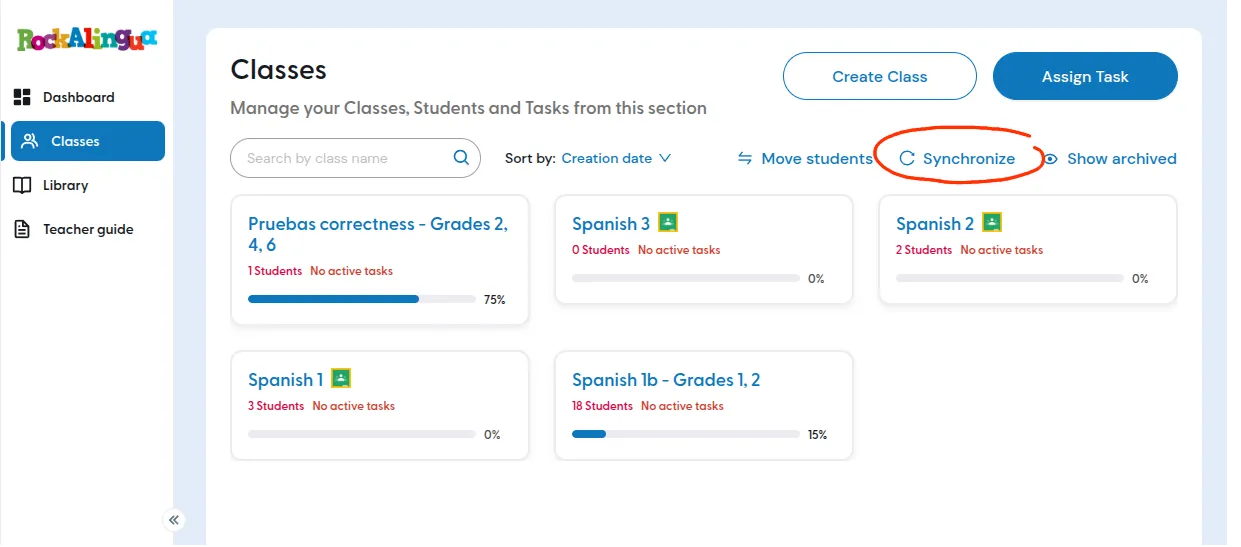
Go to “Classes”.
-
Click “Synchronize”.
-
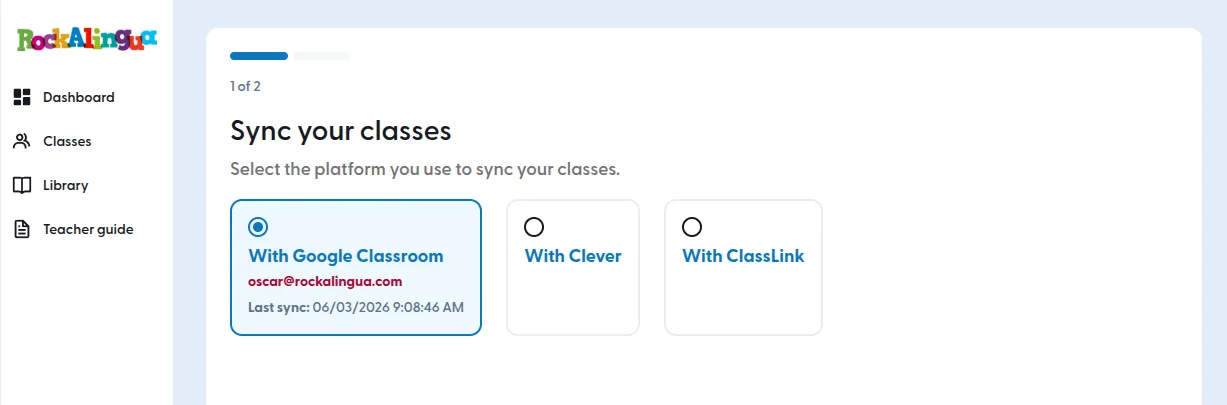
Select the platform you used for those classes.
-
Review the list of classes that will be updated.
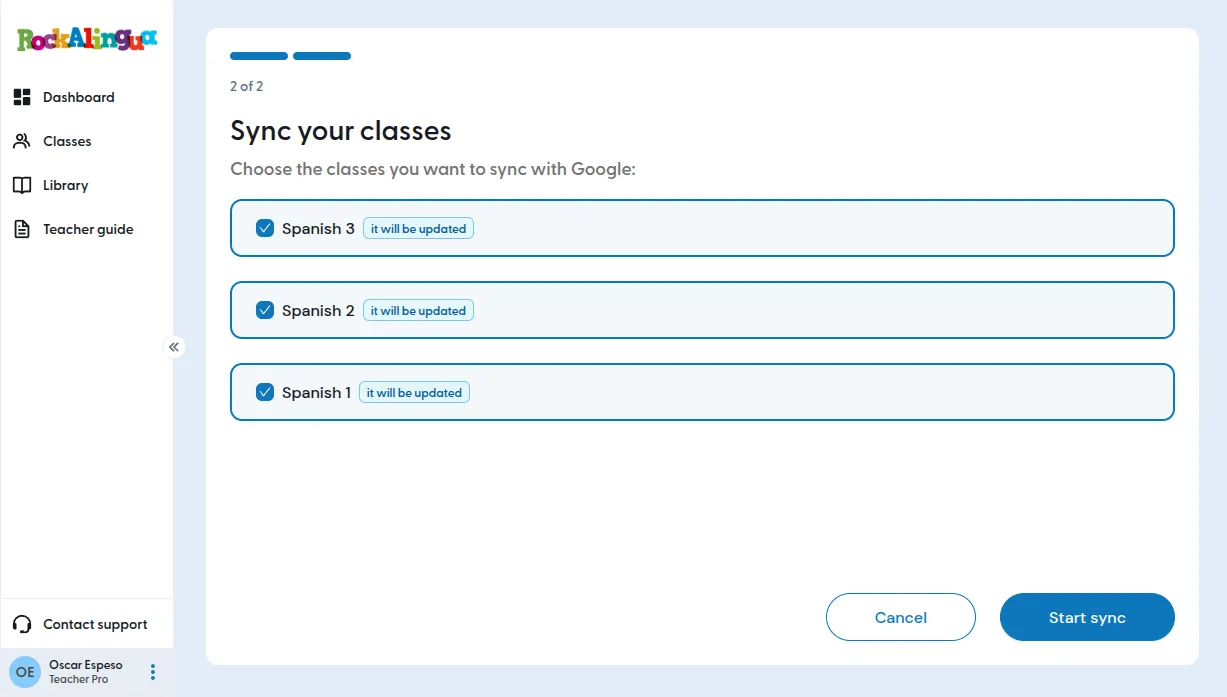
Leave all classes selected unless you have a specific reason to turn one off.
-
Click “Start sync”.
-
Wait for the sync to finish, it will take just a few seconds.
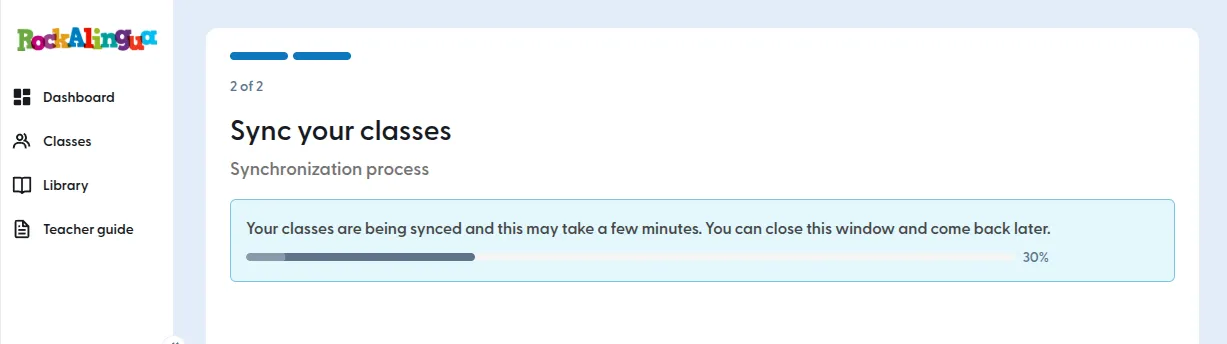
Tip: You can leave the page while it runs, if it’s taking longer. You’ll be notified when it’s done.
-
When the page refreshes and tells you the sync is complete you are finished.
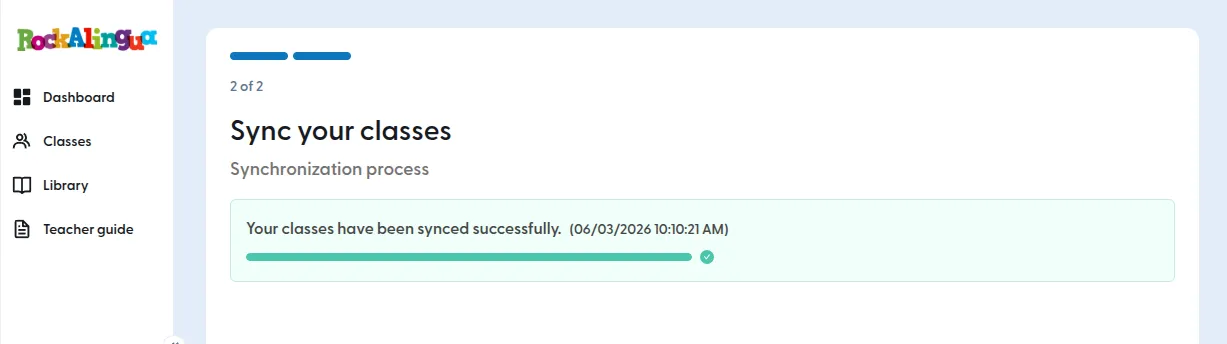
You can now go to the updated classes and check that everything looks right.