
How do I add or edit content in the shared student library?
If your students log in with one shared account, they all see the same library. Use “Manage Student Content” to choose which themes and activities that library holds.
Open the shared student library
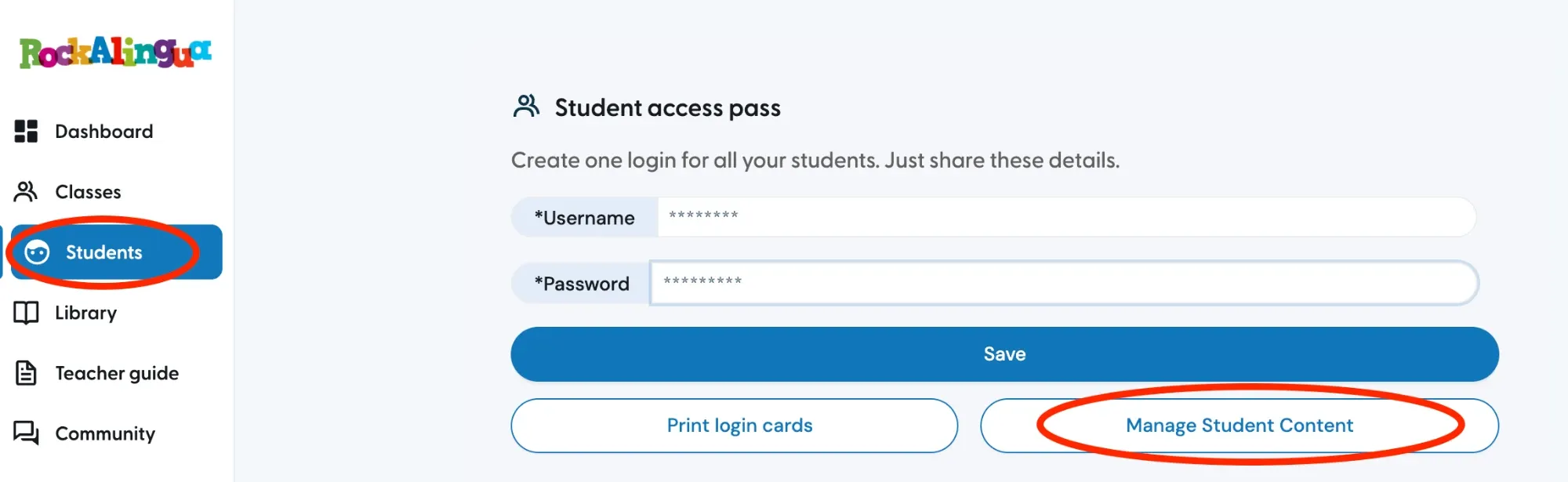
Section titled “Open the shared student library”Go to “Students”.
Click “Manage Student Content”.
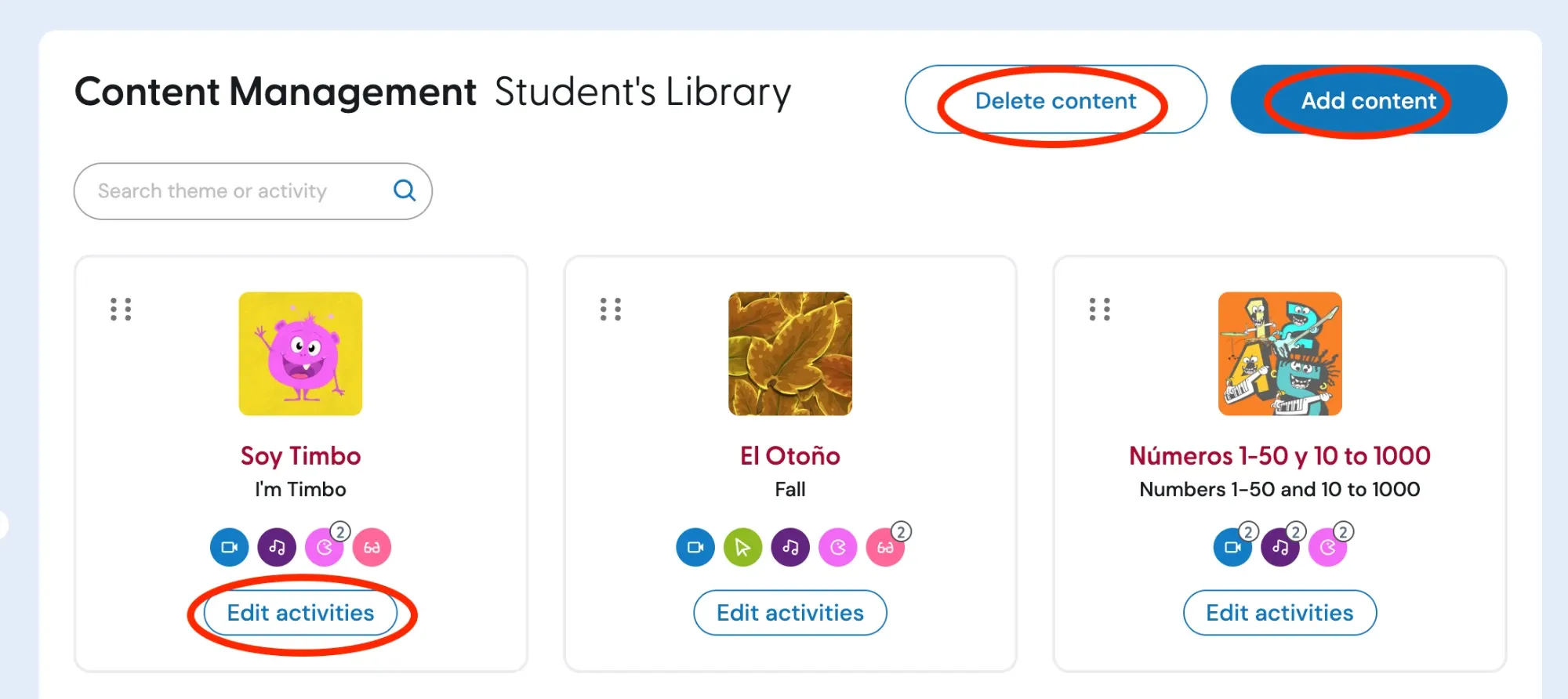
The “Content Management” page shows every theme your students can already see. Each theme card lists the activity types included.
If the page is empty, your students have no content yet, and they will not see anything when they log in.
Add a new theme
Section titled “Add a new theme”Click “Add content”.
Find the theme you want to add. You can use the search box to look for a theme or an activity.
Select the activities you want your students to see, and confirm.
The theme now appears on the “Content Management” page, and your students will find it in their library.
Change the activities of a theme you already added
Section titled “Change the activities of a theme you already added”Find the theme you want to change on the “Content Management” page.
Click “Edit activities” on that theme.
Check the activities you want your students to see, and uncheck the ones you want to hide. Then confirm.
Your students will now see only the activities you selected.
Tip: Use this to introduce a theme little by little. You can add the video first, and open up the games and the song challenge later.
Remove a theme
Section titled “Remove a theme”Click “Delete content” on the “Content Management” page and choose the theme you want to remove.
Important: Removing content takes the theme out of your students’ library. If you only want to hide part of a theme, use “Edit activities” instead of deleting the whole thing.
If you have a Pro subscription
Section titled “If you have a Pro subscription”The “Students” section above is part of the Classroom subscription.
With a Pro subscription you reach the same page a different way. Click the three dots next to your name, at the bottom of the left menu. Then go to “Settings” → “Shared Student Account” → “Manage Student Content”.
From there, everything works exactly as described above.
Working with classes instead?
Section titled “Working with classes instead?”If your students have their own accounts and belong to a class, you set their content per class rather than here. Read How do I add or edit content for one class?