
How can I track my students' progress?
Rockalingua gives you several ways to track your students’ progress. Start with the ‘Class overview’ for a quick picture, then open a task, student, or activity when you need more detail.
Open the class overview
Section titled “Open the class overview”-
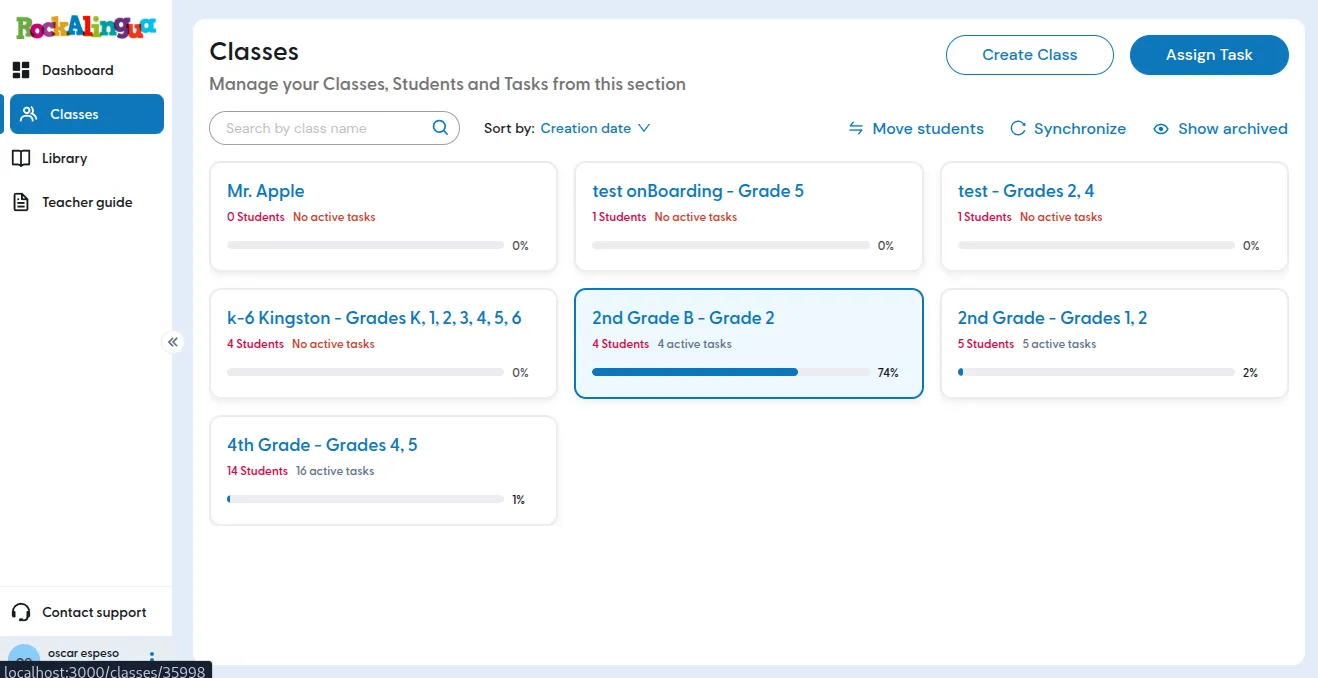
Go to “Classes”.
-
Click the class you want to review.
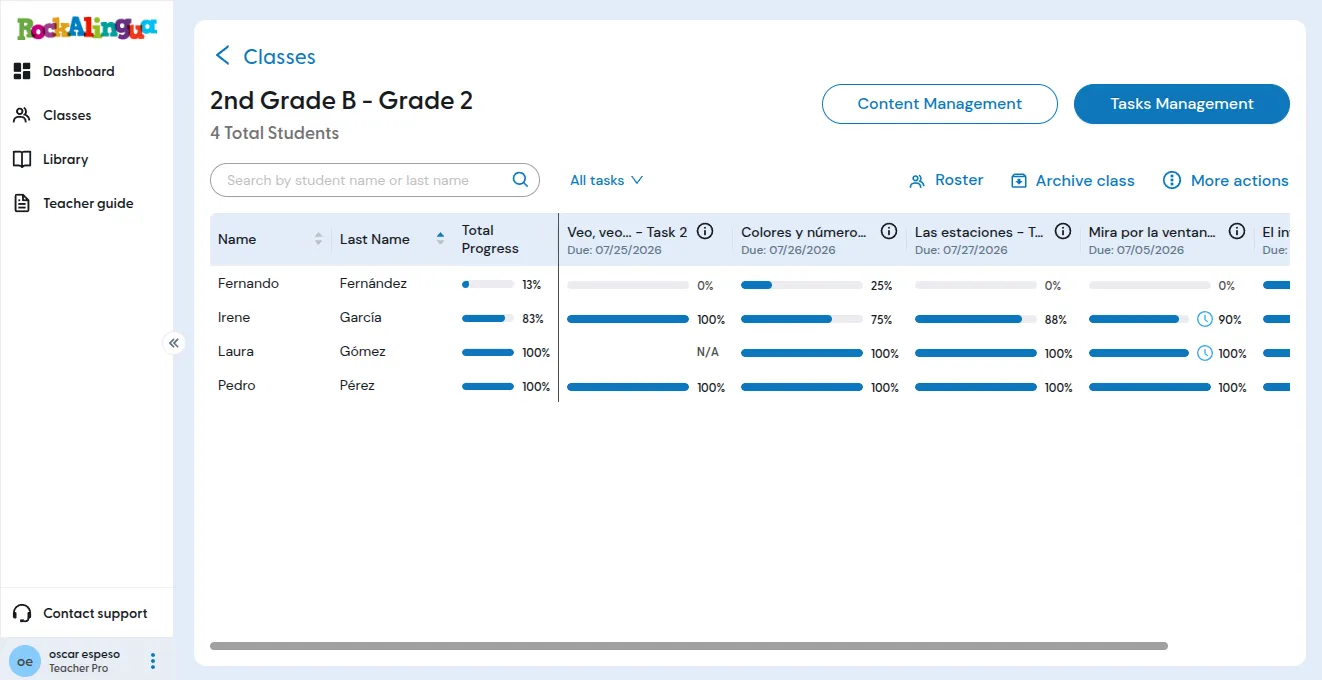
The third column, “Total Progress”, shows each student’s average progress across all assigned tasks. The columns to the right show each student’s progress on each task.
Notice the small watch icon on some of them. That means that the student did part of the task’s activities after the due date.
Tip: Depending on your screen size and the number of assigned tasks, you may need to scroll horizontally to see all the task columns.
Be aware: If you are missing a task column, even after scrolling horizontally, remember to check the task filter:
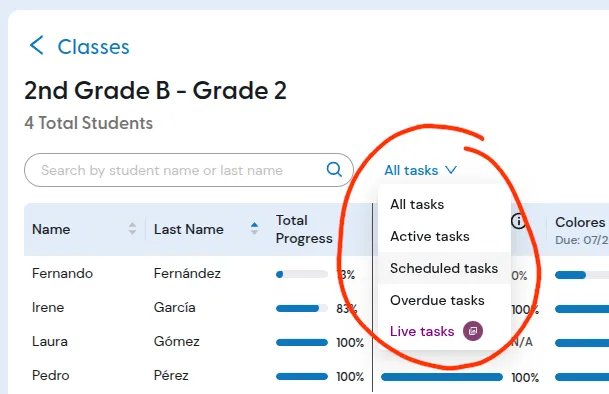
You may have selected a filter that excludes the tasks you are missing. For instance, if you have ‘active tasks’ selected, it wouldn’t show the overdue tasks.
This screen is great to get a general overview of the progress in the class, but you can get much more detailed reports (see next section).
You can click on a student’s row to open the ‘Student progress overview’ for that student.
Click on a task name on the table header to open the ‘Class task overview’ for that task.
Detailed progress views
Section titled “Detailed progress views”Use these views when you need more detail:
Class task overview See the progress and correctness of every student for every activity in one task.
Student progress overview See one student’s progress across all assigned tasks.
Student task results See one student’s progress and correctness for each activity in a selected task. If an activity was set to be repeated, you’ll see progress and correctness for each repetition.
Student activity attempts log See a log of one student’s attempts at an activity in a task, including date and time, progress, correctness, and missed concepts for each attempt.
How progress and correctness are recorded
Section titled “How progress and correctness are recorded”Each task contains several activities. Rockalingua records each student’s progress separately for every activity.
For activities with right and wrong answers, we also record correctness: the percentage of answers that were correct, from 0% to 100%.
Also, when you assign a task, you can set an activity to repeat between two and five times. Rockalingua records every attempt a student makes for each activity and shows the ones with the best progress and correctness scores.